How do I…?
29 step-by-step answers with pictures. Tap a question to open it — the red numbers in each picture match the steps. Tap a picture to see it bigger.
No answer matches that yet. Try other words, or email support@quote21.com — we’re happy to help.
🚀Getting started
How do I create my QUOTE21 account?
Your account is for your whole company. You get a free 14-day trial with everything unlocked — no card needed.
- 1
Go to app.quote21.com and tap Create an account (or tap Start free trial on www.quote21.com).
- 2
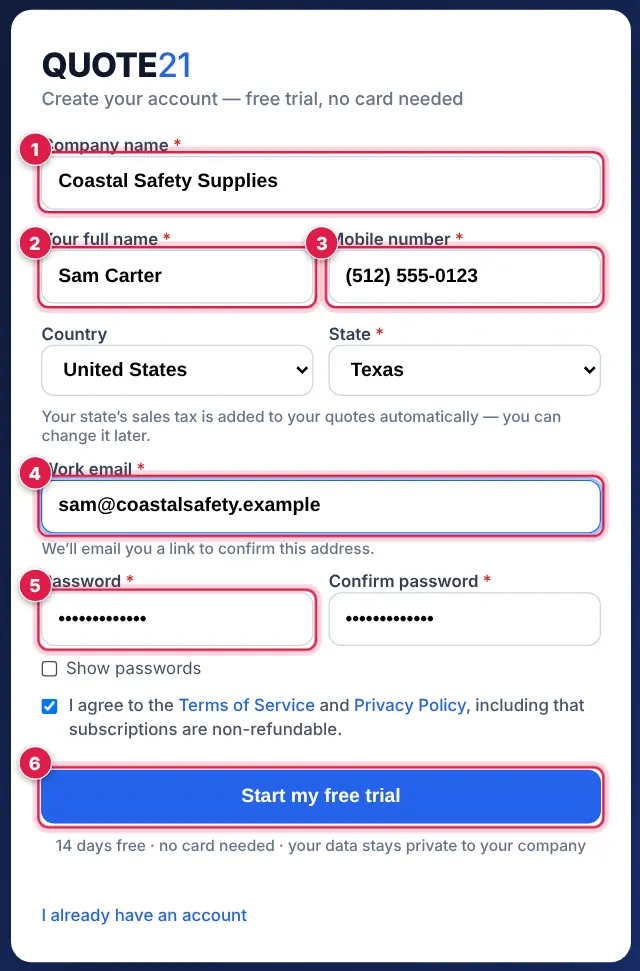
Fill in your company name 1, your full name (first name and surname) 2 and your mobile number 3. Choose your country.
- 3
Enter your work email 4 and choose a password 5 (type it twice). Tap Start my free trial 6.
- 4
Open the email we send you and tap the confirm link. Then sign in with your email and password. (Nothing after 10 minutes? Check your spam folder.)
- 5
The first time you sign in, QUOTE21 asks for your first supplier price list — see How do I load a price list from Excel or CSV? below. No spreadsheet handy? Tap ✨ Try with sample products and make a quote straight away.
💡 You are the owner of the account. Invite your sales team later from the account menu → Team.
How do I sign in, or reset a forgotten password?
Use the same email and password on your phone, tablet or computer — your catalogues and quotes are the same everywhere.
- 1
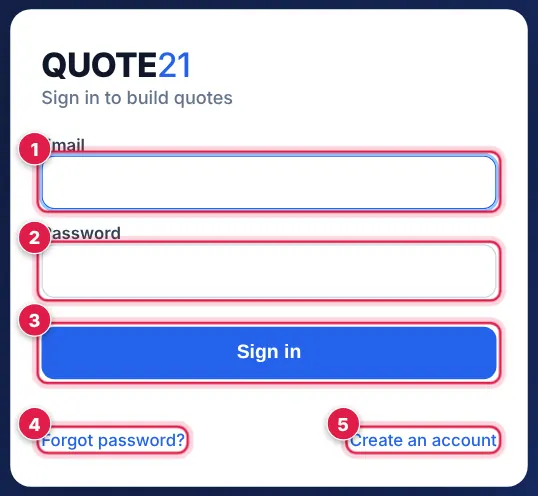
Go to app.quote21.com. Type your email 1 and password 2, then tap Sign in 3.
- 2
Forgot your password? Tap Forgot password? 4, type your email and tap the button. We email you a link — tap it and choose a new password.
- 3
No account yet? Tap Create an account 5.
💡 Tip: on your phone, use your browser’s Add to Home Screen so QUOTE21 opens like an app.
How do I add my company details and logo?
Your logo, address, contact details and banking details appear at the top and bottom of every quote, PDF and email you send. Do this first.
- 1
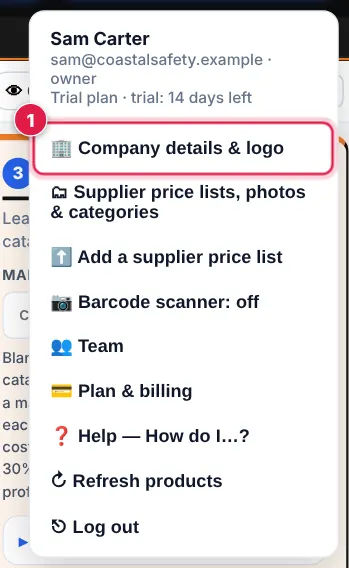
Tap your company name at the top right to open the account menu, then tap 🏢 Company details & logo.
- 2
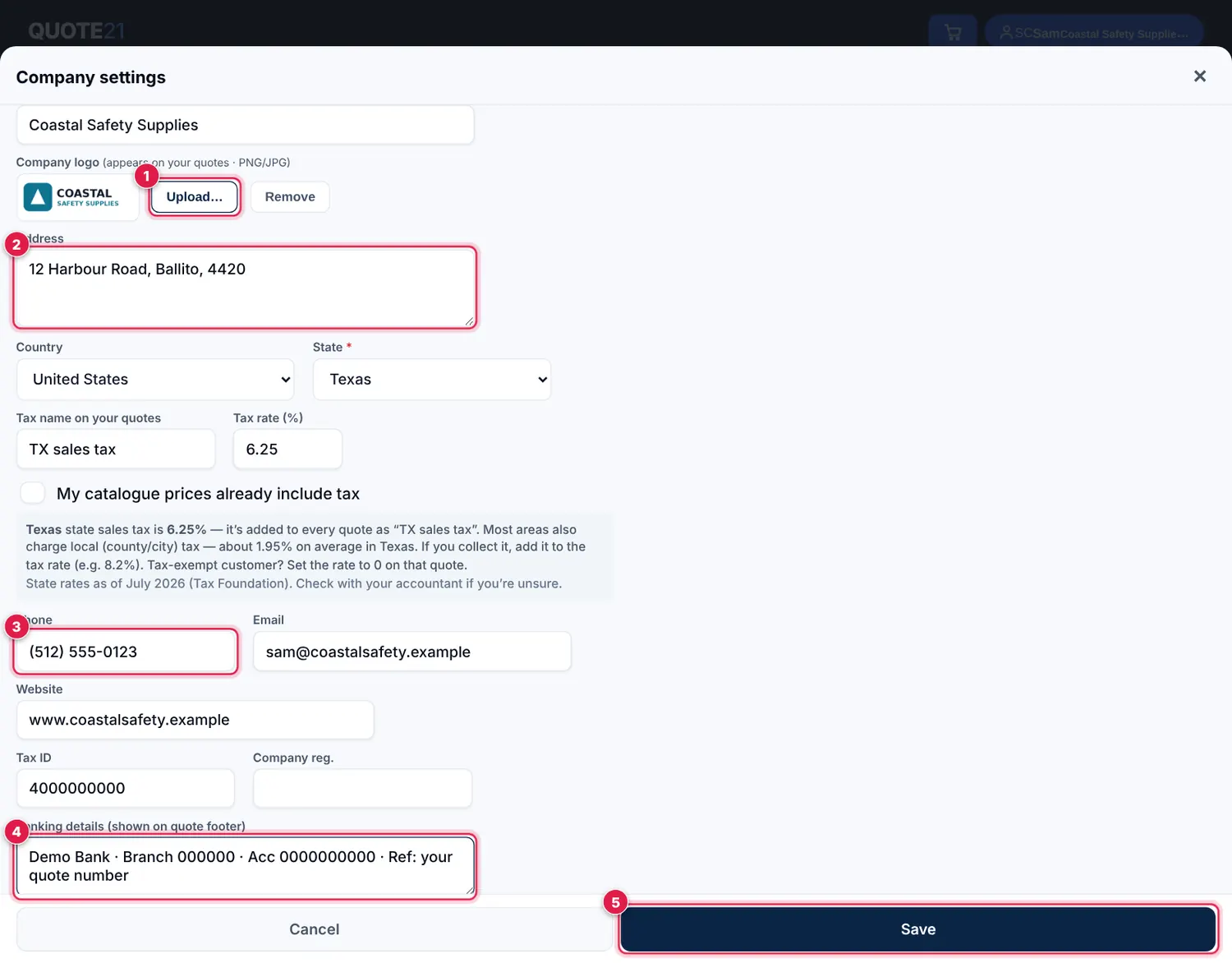
Tap Upload… 1 and choose your logo (a PNG or JPG). Fill in your address 2 and phone 3, plus email, website and your tax / EIN number.
- 3
Add your banking details 4 — they are shown in the quote footer and on the page where your customer accepts the quote, so they can pay you.
- 4
Under Quote defaults, set your sales tax rate, how many days a quote is valid for, and your payment terms. Tap Save 5.
💡 Only the owner and admins can change company details.
How do I use the “Welcome” checklist?
The checklist on your Dashboard walks you to your first quote in five steps — your business, a supplier price list, checking your products, a customer and your first quote — and ticks them off as you go.
- 1
Tap any card 1 to go straight to that job — for example 1. Your business opens your company settings. The bar shows how far you are (e.g. 60% complete).

- 2
Help 2 opens this guide. Hide ✕ 3 hides the checklist. To show it again: account menu → ❓ Help — How do I…? → Show the getting-started checklist (at the top).
How do I try QUOTE21 before I have a price list?
Load 24 sample products — gloves, boots, hard hats, power tools, plumbing and electrical, with pictures — and make a real quote in under a minute.
- 1
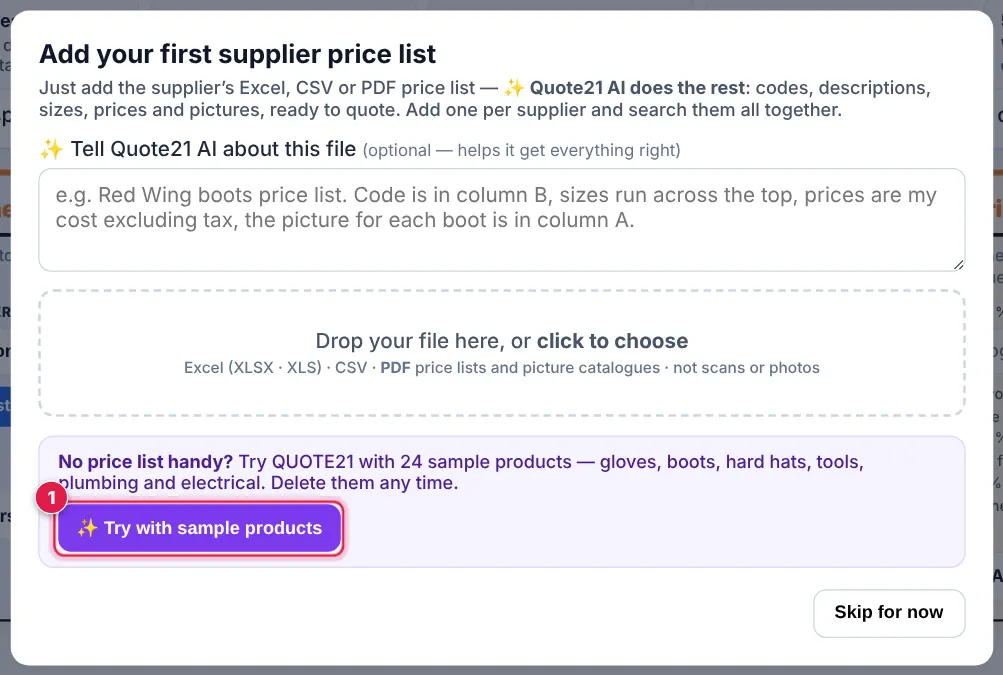
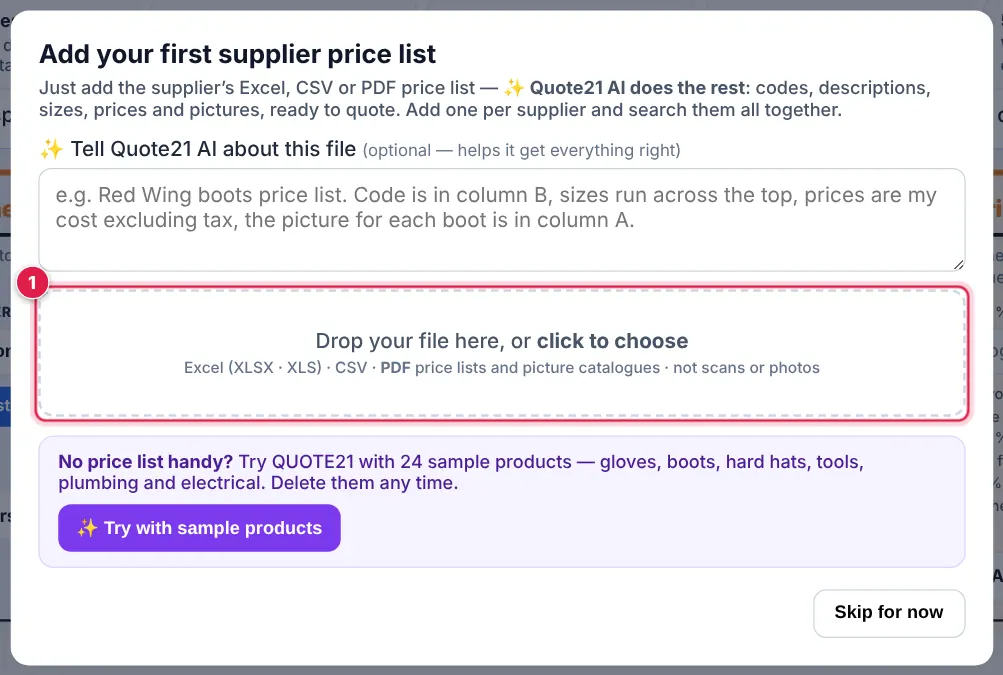
On the Add your first supplier price list window (it opens the first time you sign in), tap ✨ Try with sample products 1. It is also on the Welcome checklist.
- 2
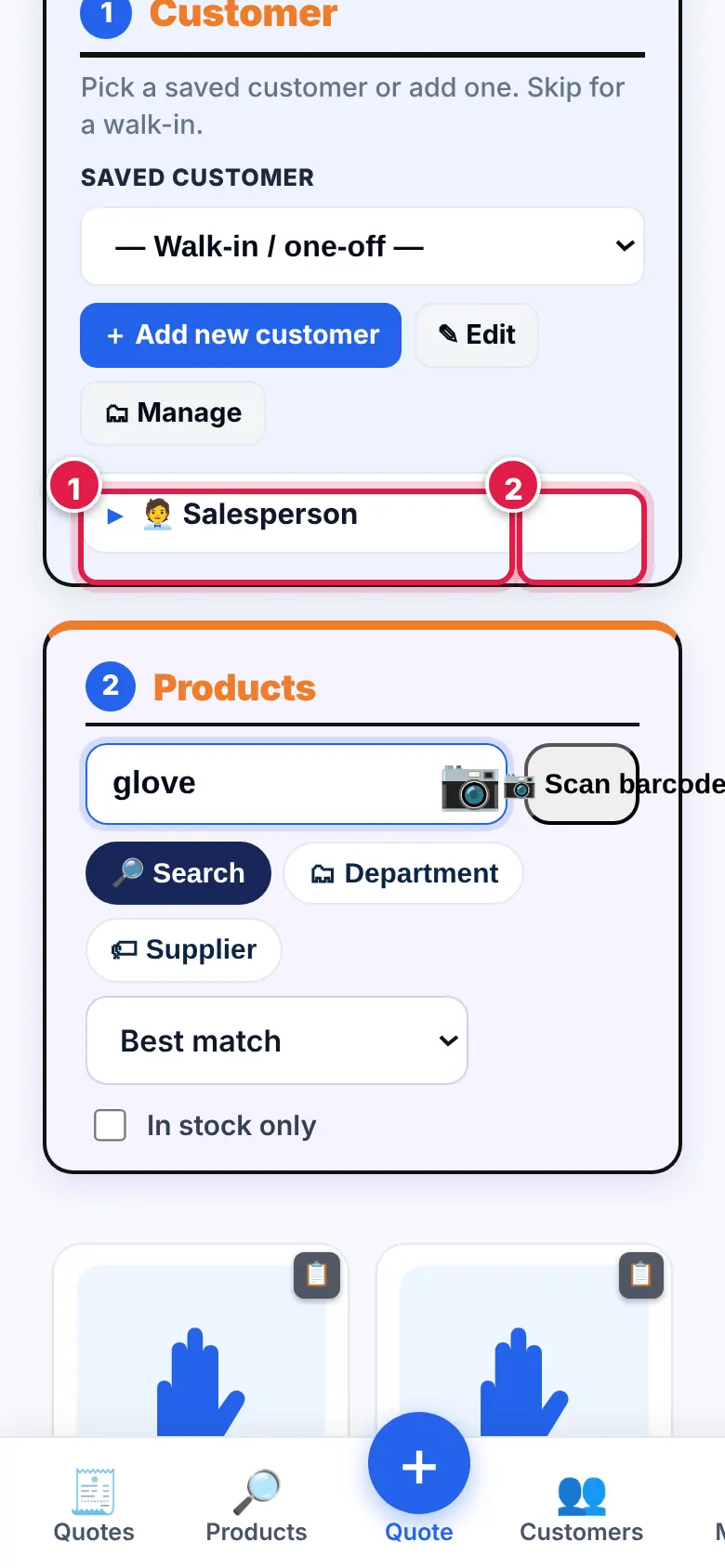
QUOTE21 opens Products with “glove” already searched. Tap Add, set your margin, then Review & send → and Download PDF — that’s a quote.
- 3
When you’re ready, add your own price list. Delete the sample list any time: Settings (or the account menu) → 🗂 Supplier price lists → Delete.
How do I use the Dashboard?
The Dashboard is your home screen: start a quote, find a product, and see which quotes need you today.
- 1
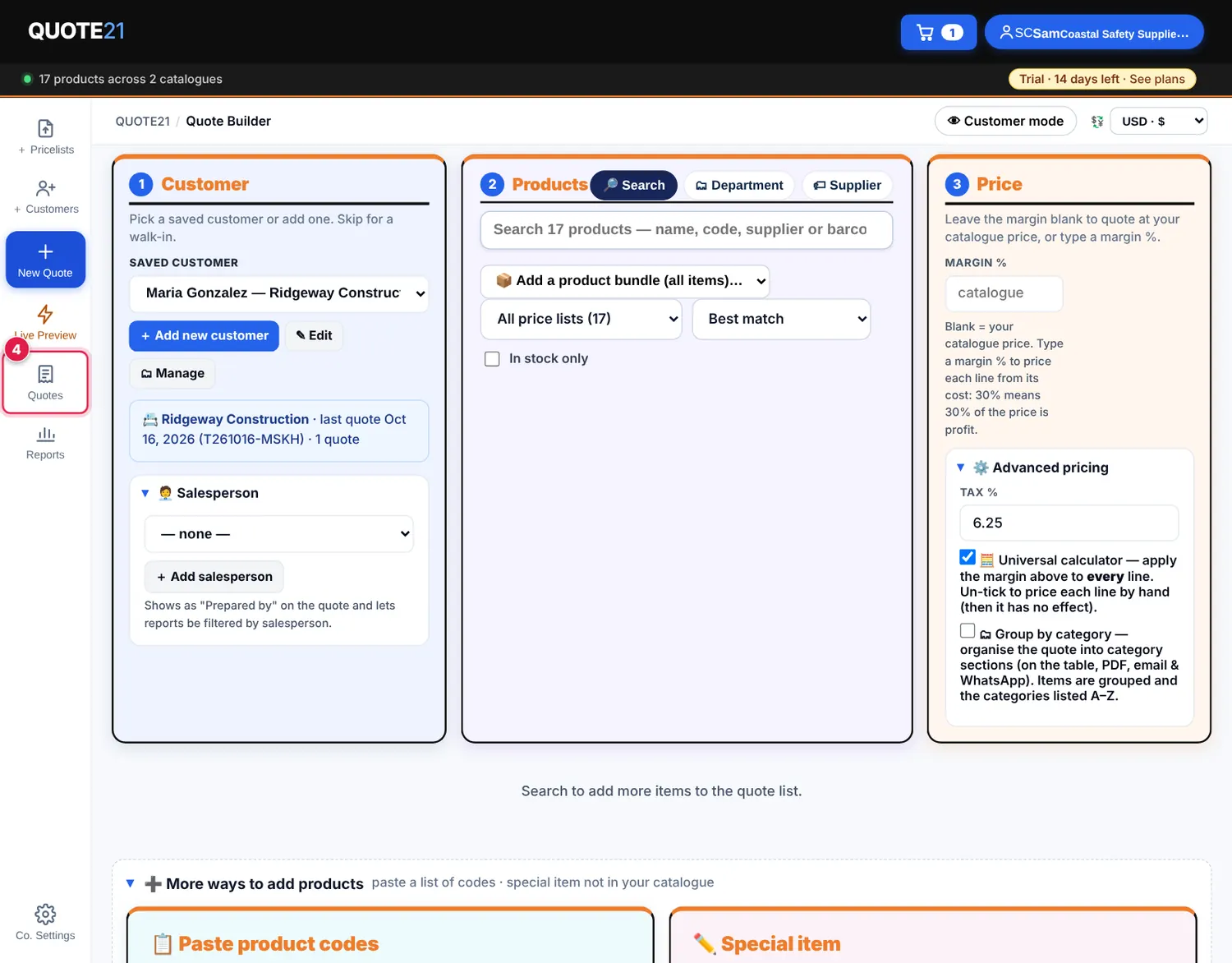
Tap + New quote 1 to start a quote — it is also at the top of every screen. The search box finds any product across all your price lists.
- 2
The tiles 2 show quotes that need a follow-up (sent over a week ago, no answer), quotes waiting for a reply (and how many the customer has opened), what was accepted this month and your win rate. Tap a tile to see those quotes.
- 3
Recent quotes shows each quote’s status 3: ✎ Draft, ➤ Sent, 👁 Viewed (your customer opened the link), ⏰ Follow up, ✓ Accepted, ✕ Rejected or ⌛ Expired. Tap a quote to open it. ⚡ Needs your attention lists quotes the customer opened, that need a follow-up or expire within 3 days.
- 4
The menu at the top 4 — Dashboard · Quotes · Products · Customers · Reports · Settings — takes you everywhere else. On a phone the same things are in the bar at the bottom.
How do I use QUOTE21 on my phone?
Everything works on a phone — handy when you’re standing in a customer’s shop.
- 1
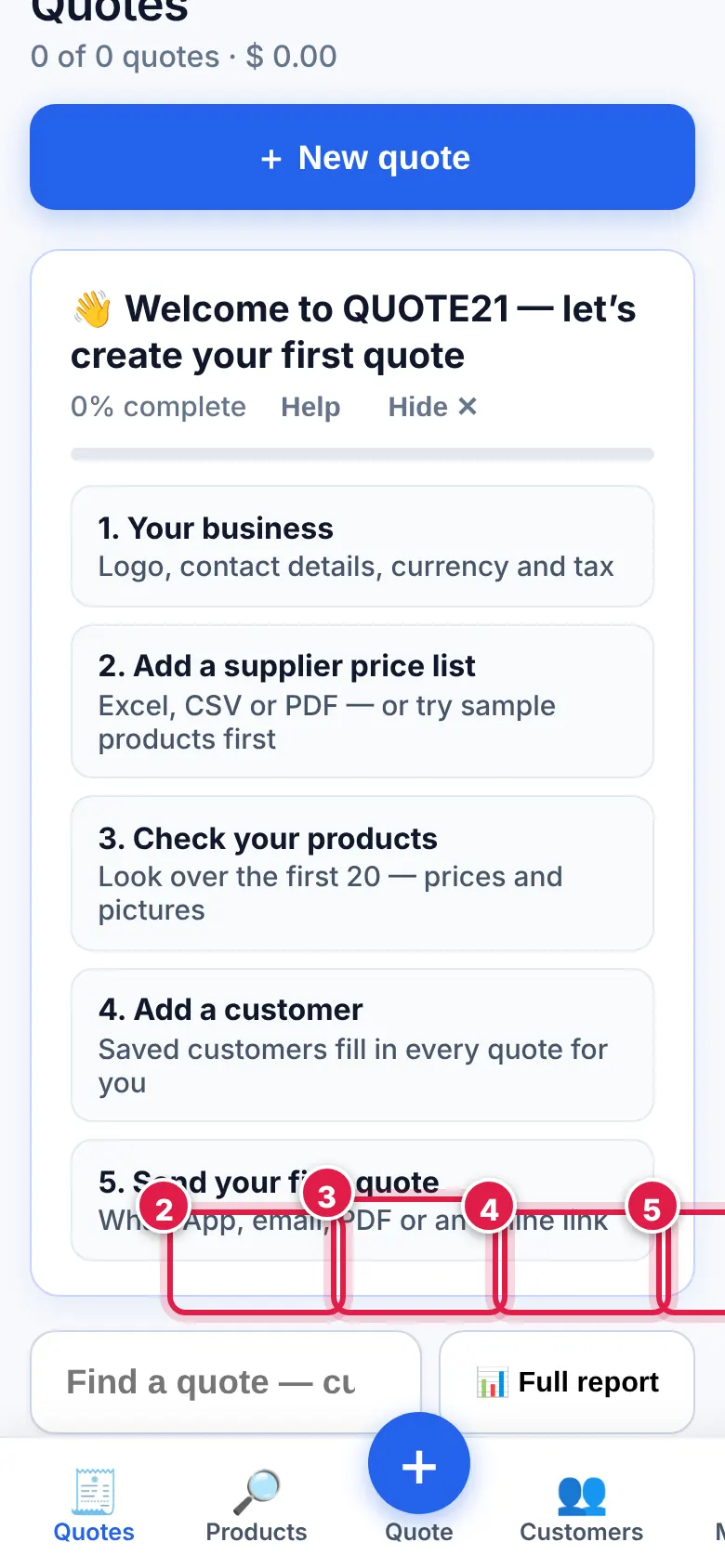
The bar at the bottom has Home 1, Products 2, + Quote 3 (start a new quote), Customers 4 and More 5 (Quotes, Reports, Settings, your account and Help).
- 2
In Products, tap the 📷 button in the search bar 2 to scan a product’s barcode with your camera, then add it to the quote.
- 3
Then Review & send → and tap 💬 WhatsApp — the quote goes straight to your customer.
💡 On your phone, use your browser’s Add to Home Screen so QUOTE21 opens like an app.
🗂Supplier price lists
How do I load a price list from Excel or CSV?
A catalogue is one supplier’s price list. Load as many as you like — you quote from all of them together. Excel (XLSX, XLS) and CSV files work, with one product per row.
- 1
Open the account menu (your company name, top right) and tap ⬆️ Add a supplier price list. (The very first time, this window opens by itself.)
- 2
Drop your file in the box, or tap it to choose the file from your computer or phone.
- 3
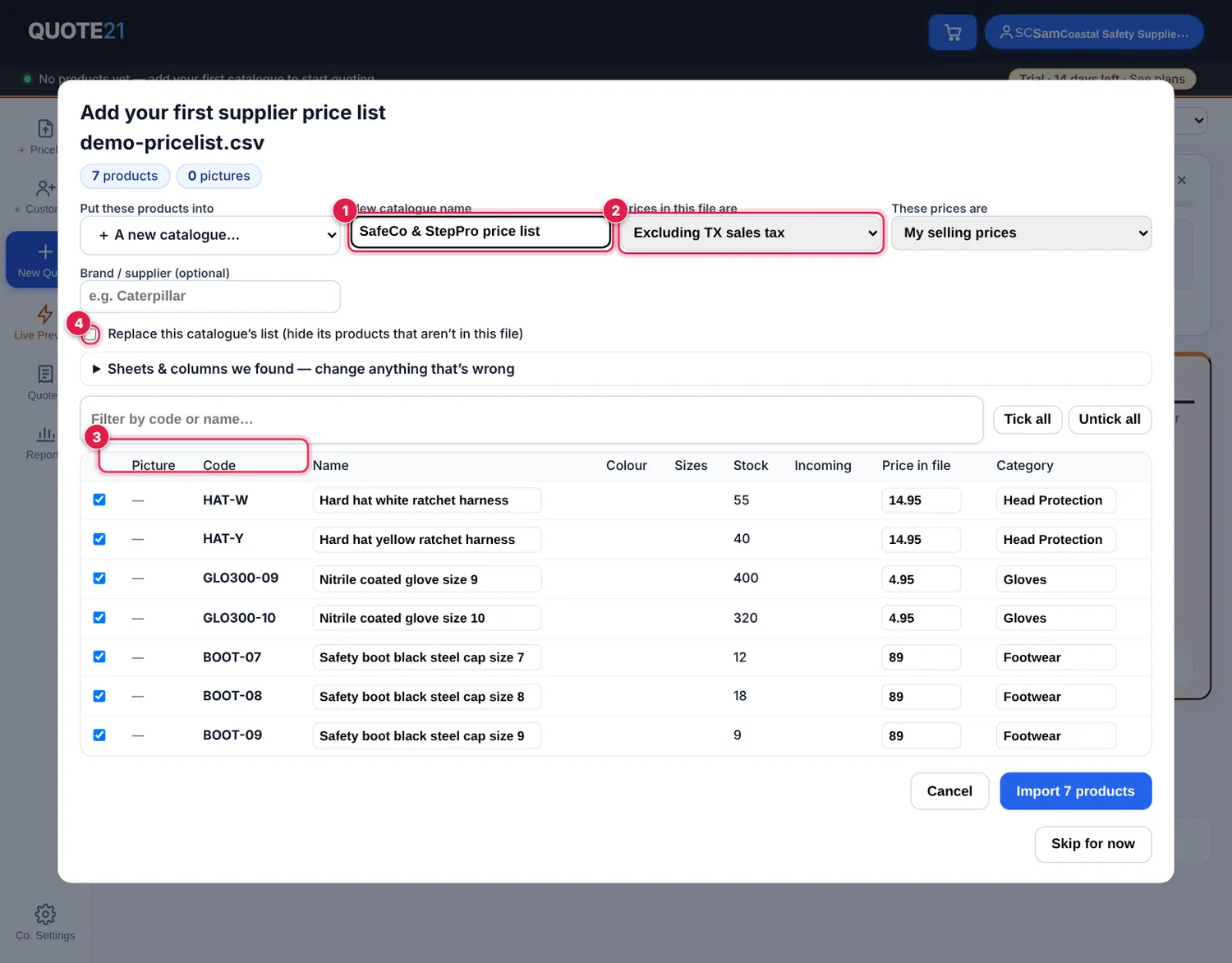
Give the catalogue a name 1 — usually the supplier’s name. QUOTE21 matches your columns for you: check the product code 2, description and selling price 3. Cost price, category, brand, barcode, stock and picture links are optional.
- 4
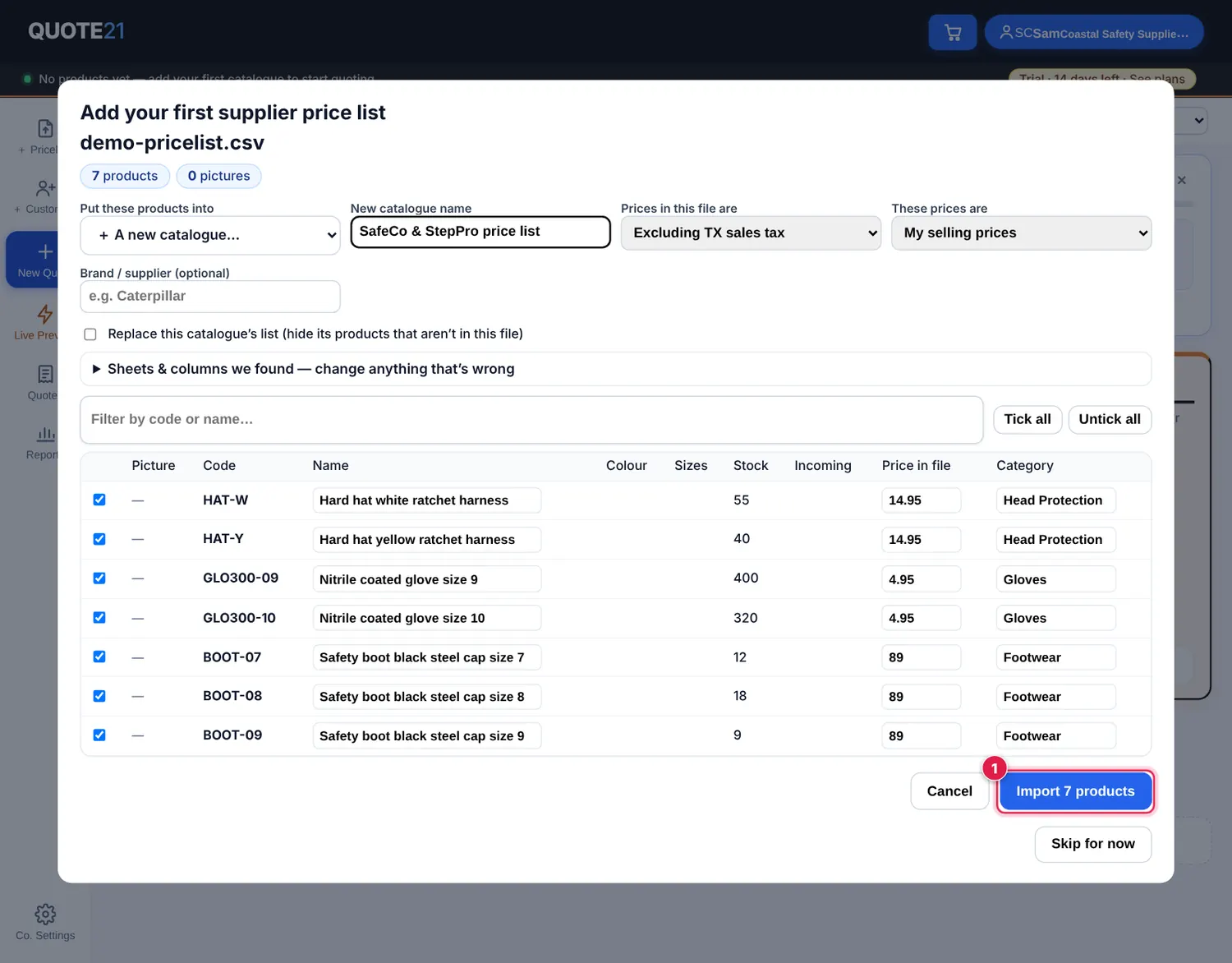
Look at the preview at the bottom to make sure the codes, names and prices are in the right columns, then tap Import products.
- 5
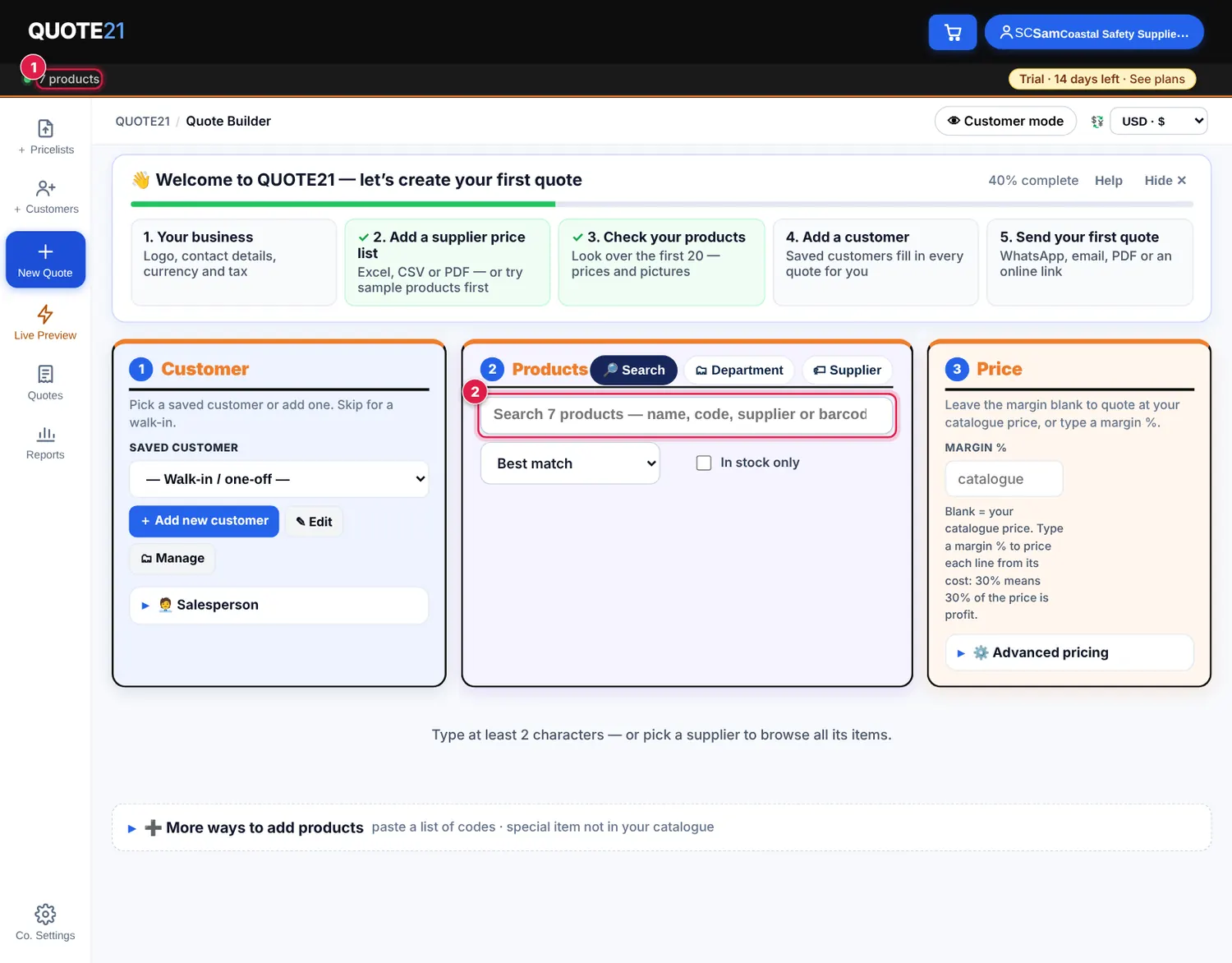
Done — the bar at the top shows how many products you have 1. Type in the search box 2 to find any of them.
💡 In the US, prices are normally before sales tax (tax is added on the quote). If your file already includes tax, tick My catalogue prices already include tax in Company details. Not sure? Load it and check one product — you can update the file any time.
💡 Your file has pictures as web links (a column of “https://…jpg”)? Match it to Image URL and the pictures come in too.
💡 Stuck with a price list? Email it to support@quote21.com and we’ll help you load it.
How do I load a PDF price list?
Supplier sent a PDF instead of a spreadsheet? QUOTE21 can read PDF price lists (rows of code, description, price) for free. The PDF must contain real text — a scanned page or a photo of a price list can’t be read yet, so ask your supplier for the Excel list or the original PDF.
- 1
Account menu → ⬆️ Add a supplier price list, and choose the PDF.
- 2
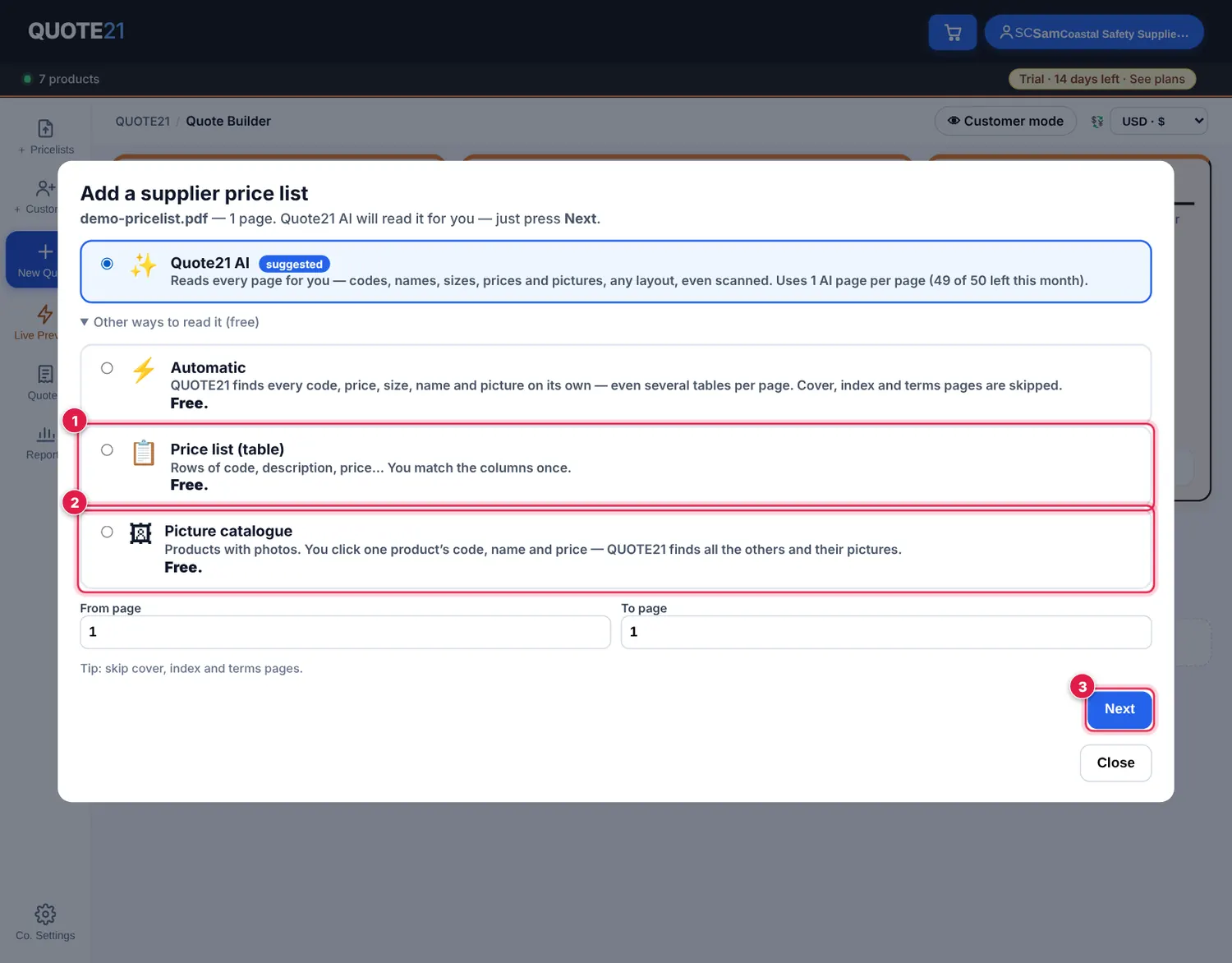
Pick Price list (table) 1 (QUOTE21 suggests the best one — open Other ways to read it (free) if you don’t see it). Use From page / To page to skip covers and terms pages. Tap Next 3.
- 3
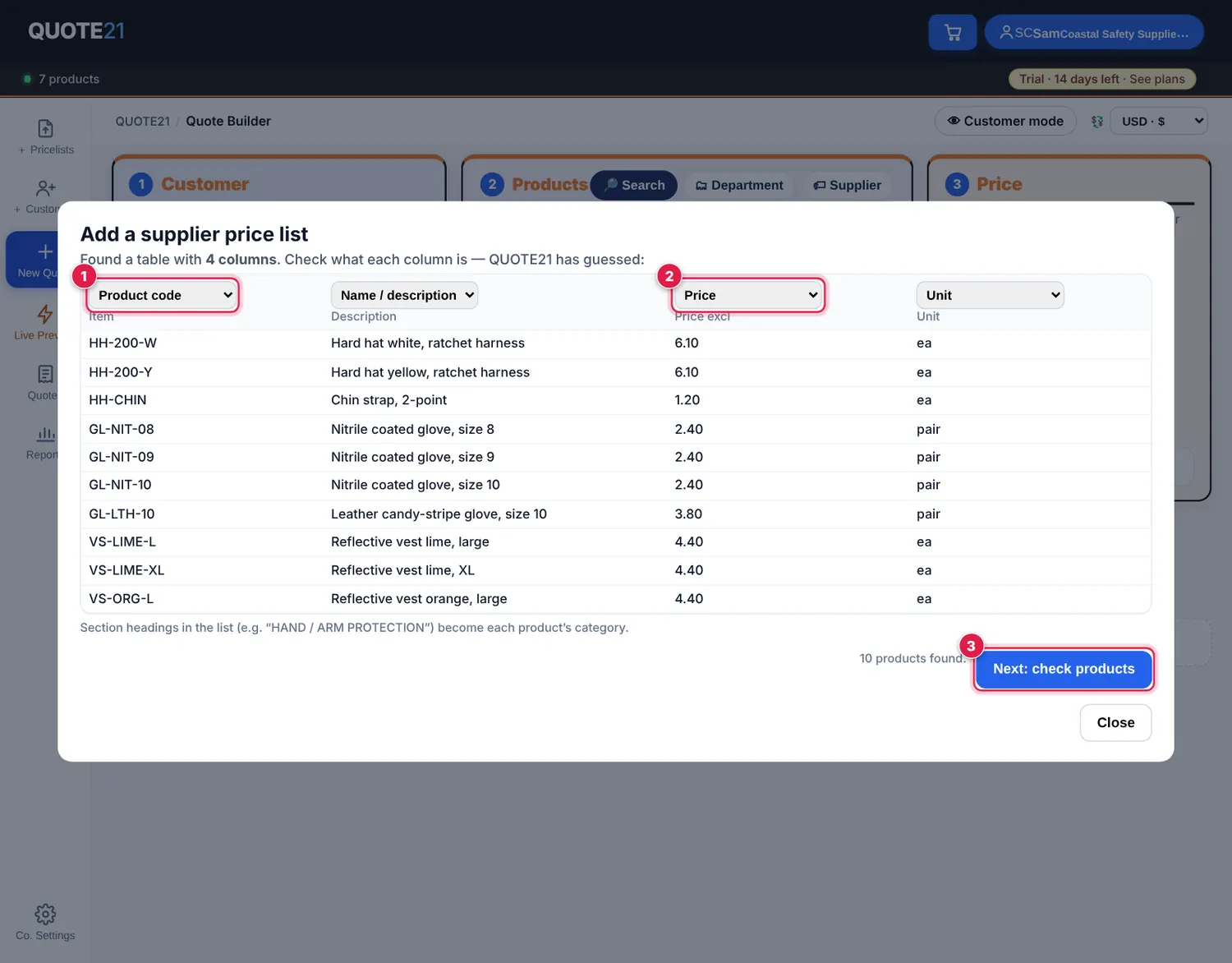
QUOTE21 finds the table and guesses each column. Check the Product code 1 and Price 2 columns are right (change a heading with its drop-down if not), then tap Next: check products 3.
- 4
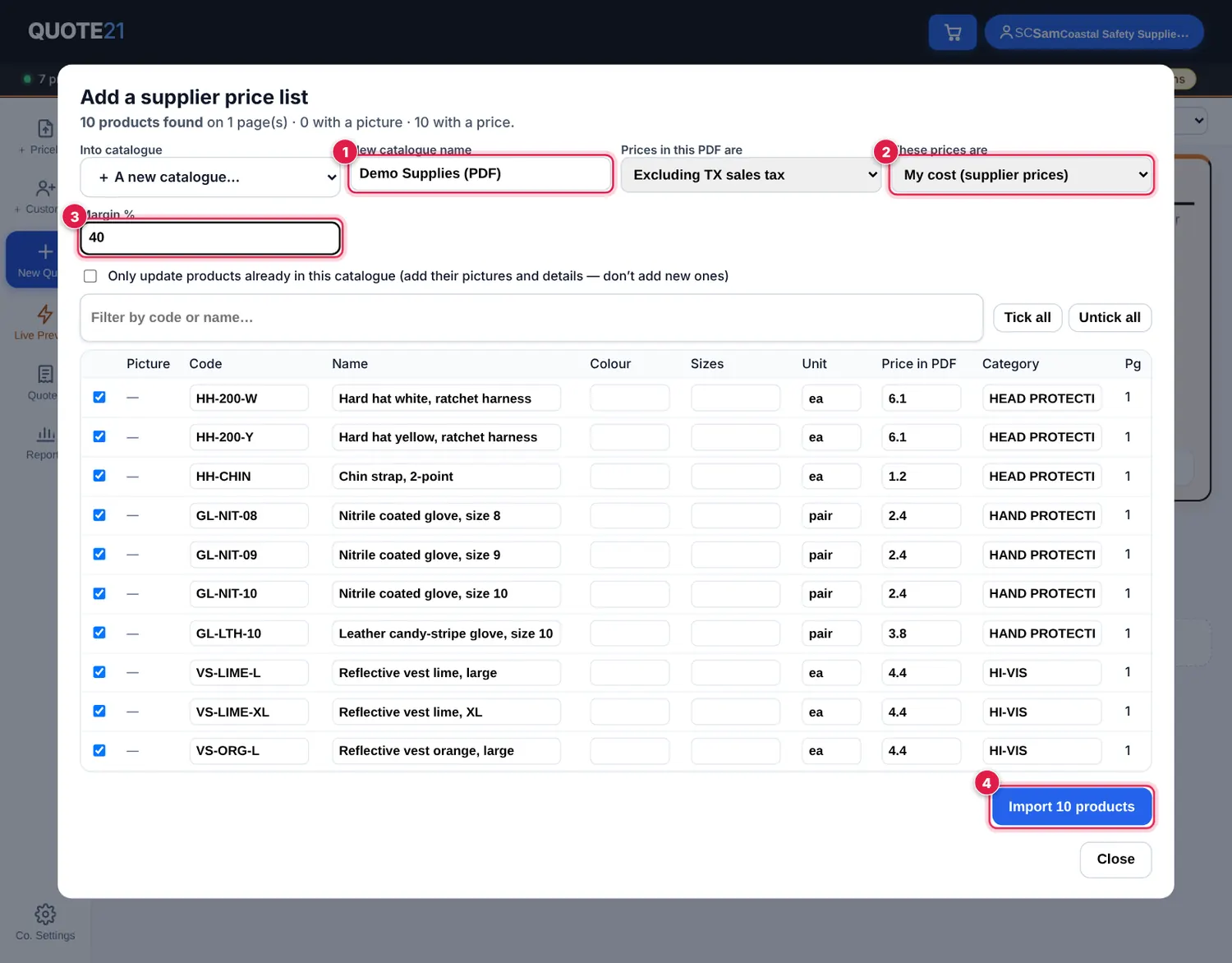
Name the catalogue 1. Say whether the PDF prices are including or excluding sales tax, and whether they are your selling prices or your cost (supplier prices) 2. If they are cost prices, enter the margin % you want 3 (profit as a share of the selling price) and QUOTE21 works out your selling prices.
- 5
Untick any rows you don’t want, then tap Import … products 4.
💡 Headings in the price list (e.g. “HAND PROTECTION”) become each product’s category.
How do I load a PDF picture catalogue?
For glossy catalogues with a photo per product, show QUOTE21 one product and it finds all the others — with their pictures.
- 1
Account menu → ⬆️ Add a supplier price list → choose the PDF. Pick Picture catalogue 2 and tap Next.
- 2
On the page, click the first product’s code 1, then its name 2, then its price 3. Sizes, colour and category are optional — tap Skip to leave them out.
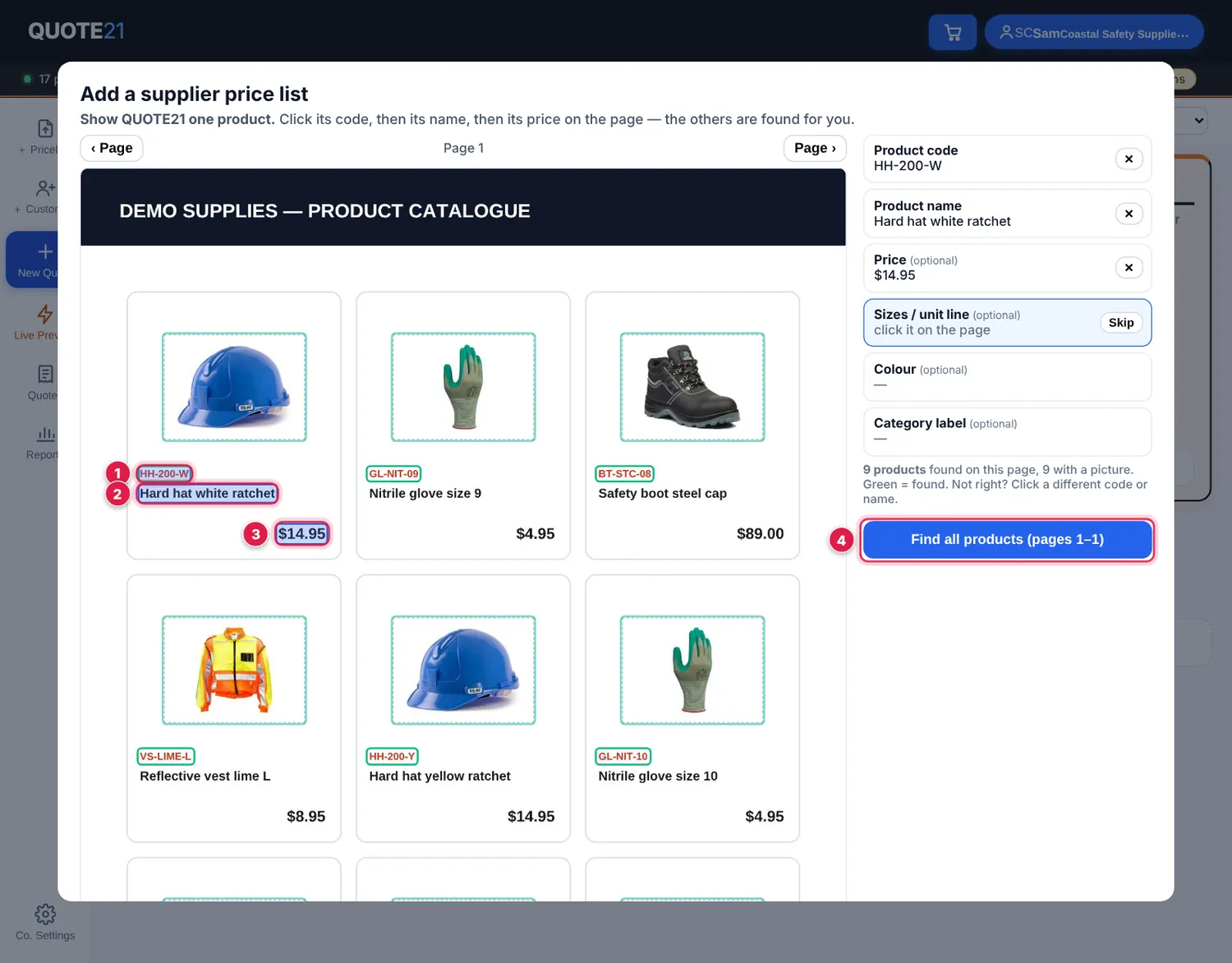
- 3
Products QUOTE21 has found turn green. Not right? Click a different code or name. When it looks good, tap Find all products 4.
- 4
Check the list, name the catalogue, set the price type (as for a PDF price list) and tap Import.
How do I update prices when my supplier sends a new price list?
Load the new file into the same catalogue. Products with the same code get the new price — your pictures and categories stay.
- 1
Account menu → 🗂 Supplier price lists, photos & categories. On the supplier’s catalogue, tap Update file 3.
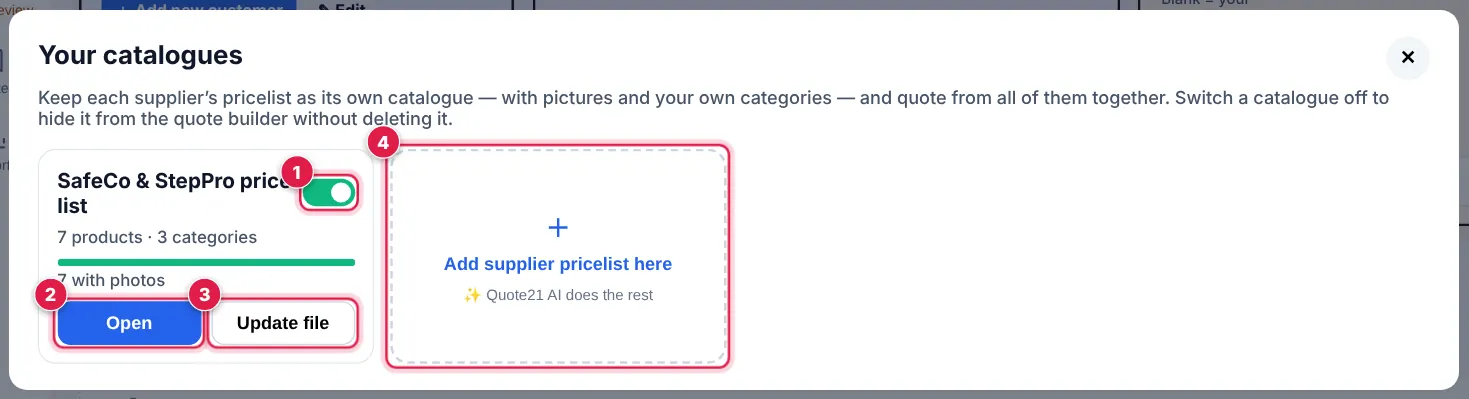
- 2
Choose the new file. Check the columns as before 1.
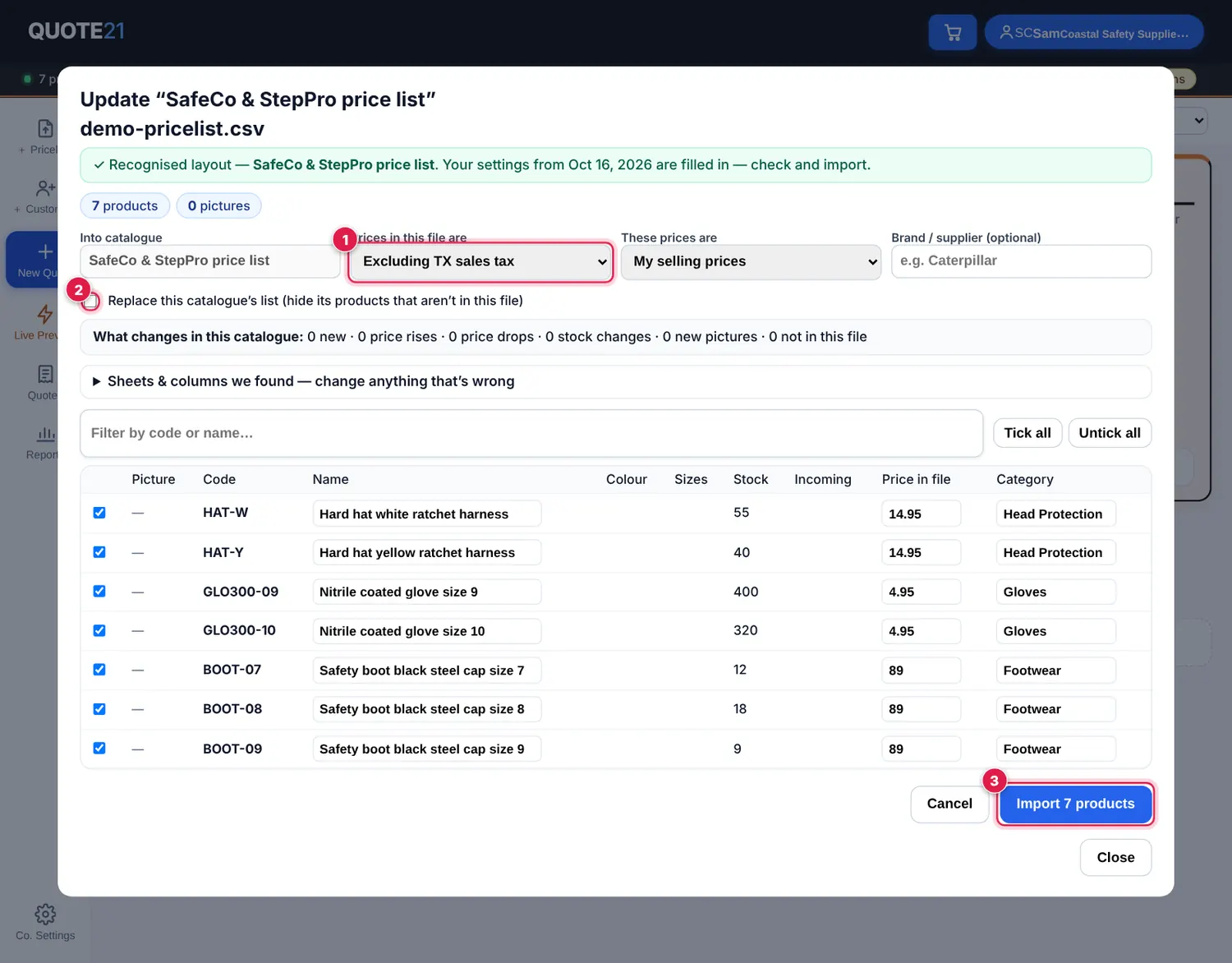
- 3
Tick Replace this catalogue’s list 2 if the supplier has dropped products — anything not in the new file is hidden. Leave it unticked to only add and update. Tap Import products 3.
How do I manage my catalogues and categories?
Each supplier’s price list is its own catalogue, with its own pictures and categories.
- 1
Account menu → 🗂 Supplier price lists, photos & categories. Use the switch 1 to hide a catalogue from the quote builder without deleting it. Tap Open 2 to work on it, or Add a price list 4.
- 2
Inside a catalogue: 📷 Add photos 1 adds many pictures at once (see pictures below). Update file 2 loads a new price list. Delete removes the catalogue.
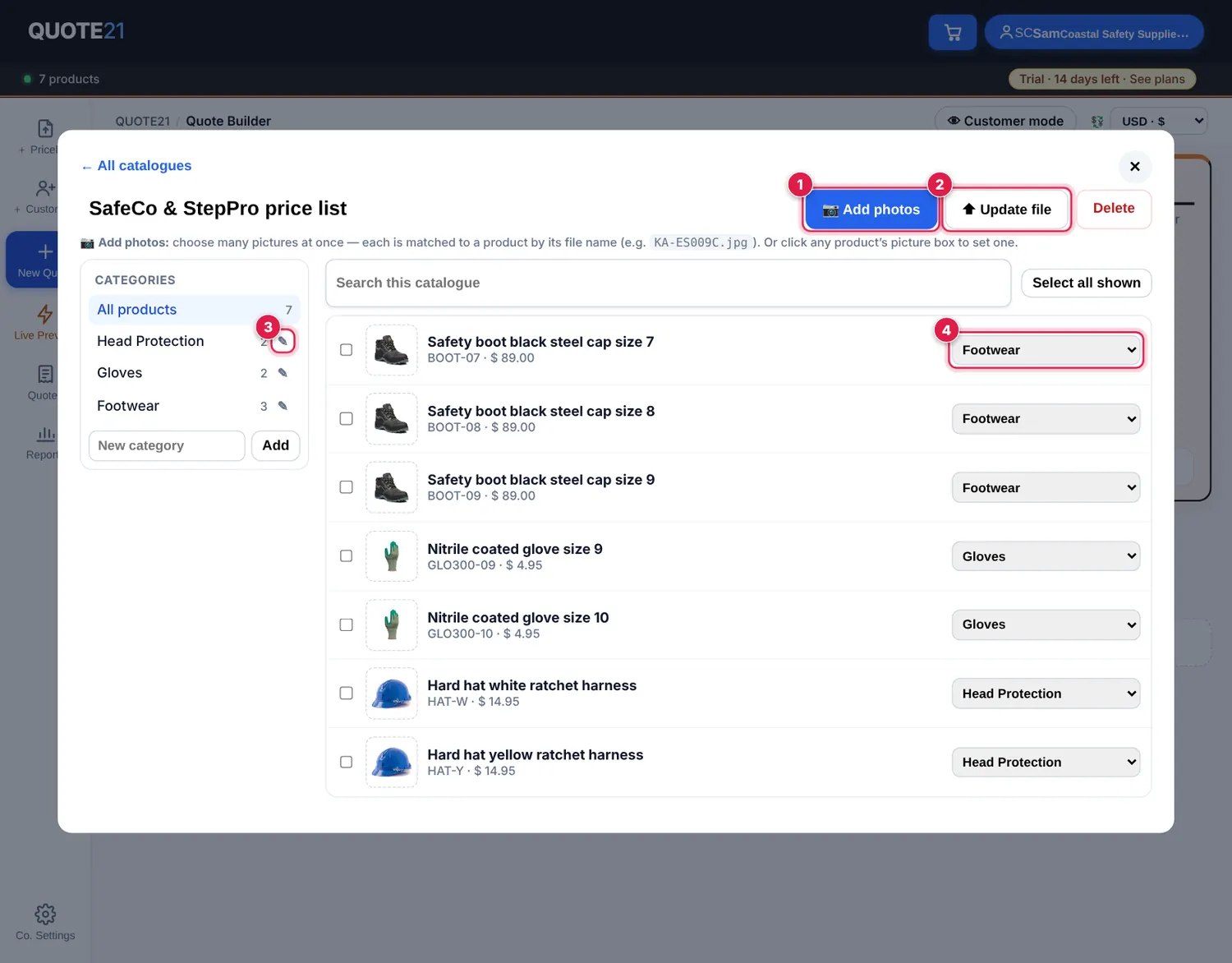
- 3
Categories are listed on the left. Tap ✎ 3 to rename one — use an existing name to merge two. Type a New category and tap Add.
- 4
Change a product’s category with its drop-down 4. To move many at once, tick them (or Select all shown) and pick a category.
💡 With more than one catalogue, the quote builder shows a Catalogue row above the search box — tap a supplier to search only their products.
How do I add product pictures?
Quotes with pictures look professional and are easier for customers to approve.
- 1
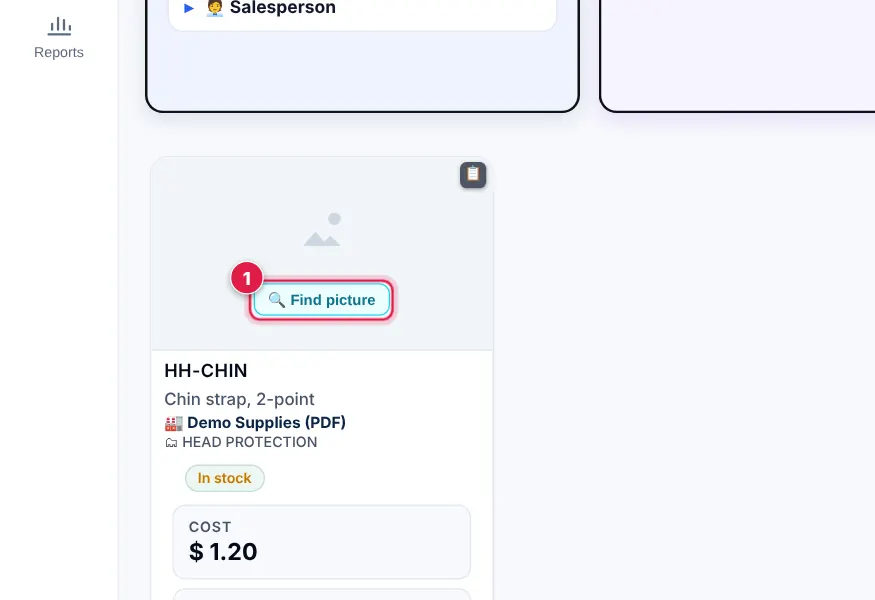
Search for the product. If it has no picture, tap 🔍 Find picture 1 on its card (or 📷 Update picture to change one).
- 2
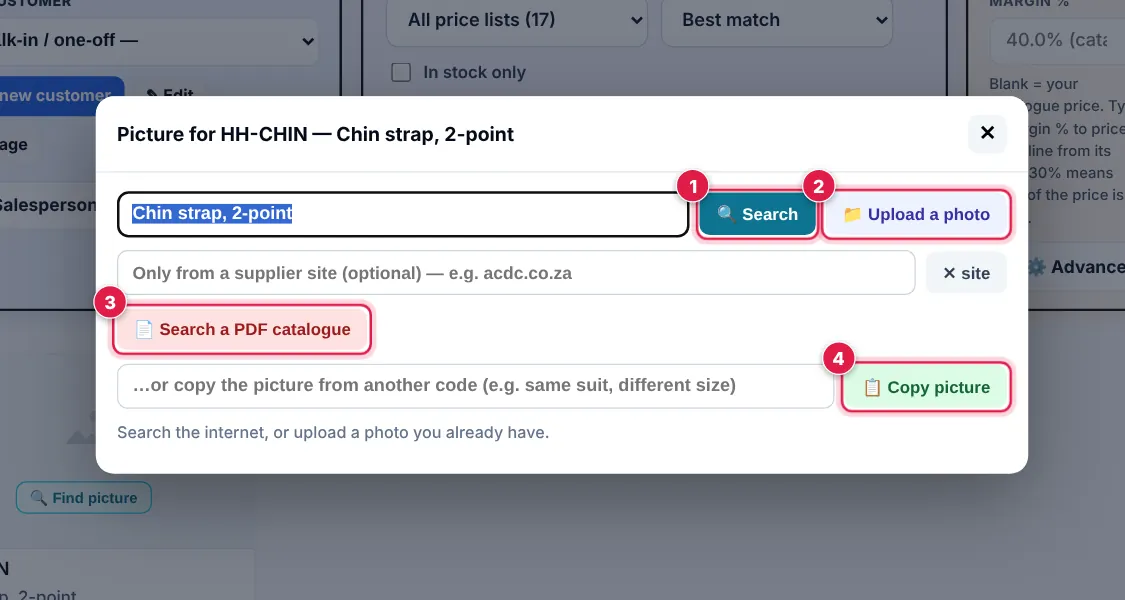
Search 1 finds pictures on the internet — tap the one you want. Or Upload a photo 2 from your phone or computer, take it from a supplier’s PDF catalogue 3, or Copy picture 4 from another code (handy for sizes of the same item).
- 3
Many at once: account menu → 🗂 Supplier price lists → Open the price list → 📷 Add photos 1. Choose lots of pictures named by product code (e.g.
HAT-W.jpg) — each one is matched to its product.
🧾Building a quote
How do I make a quote, step by step?
A quote is four quick steps: 1 Customer → 2 Products → 3 Price → Review & send. Everything else is optional.
- 1
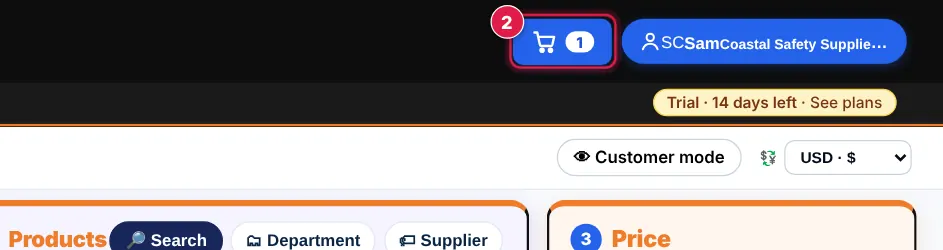
Tap + New quote 1 (top of every screen, or + Quote on a phone). The 🛒 button 2 shows how many items are on the quote you’re working on.
- 2
1 Customer — pick a saved customer or tap + Add new customer. (Skip it for a walk-in.) 2 Products — search and tap Add. 3 Price — set your margin.
- 3
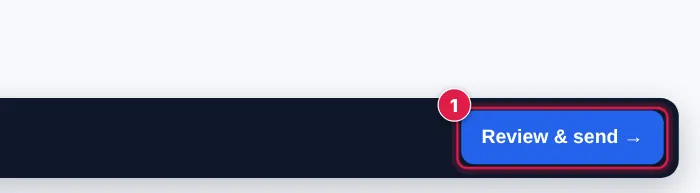
A bar follows you down the page with the number of items and the total. Tap Review & send → 1 to see the quote and send it.
- 4
You never need to press Save: a quote saves itself as a Draft (with its quote number) as soon as it has products, and you’ll find it on the Dashboard and under Quotes.
How do I find a product and add it to my quote?
Search across all your supplier price lists by name, code, brand or barcode.
- 1
Type at least 2 letters in the search box 1. More words narrow it down (e.g.
boot 8). Tap + Add to quote 2 on the product. Products in sizes show size buttons — tap a size to add it.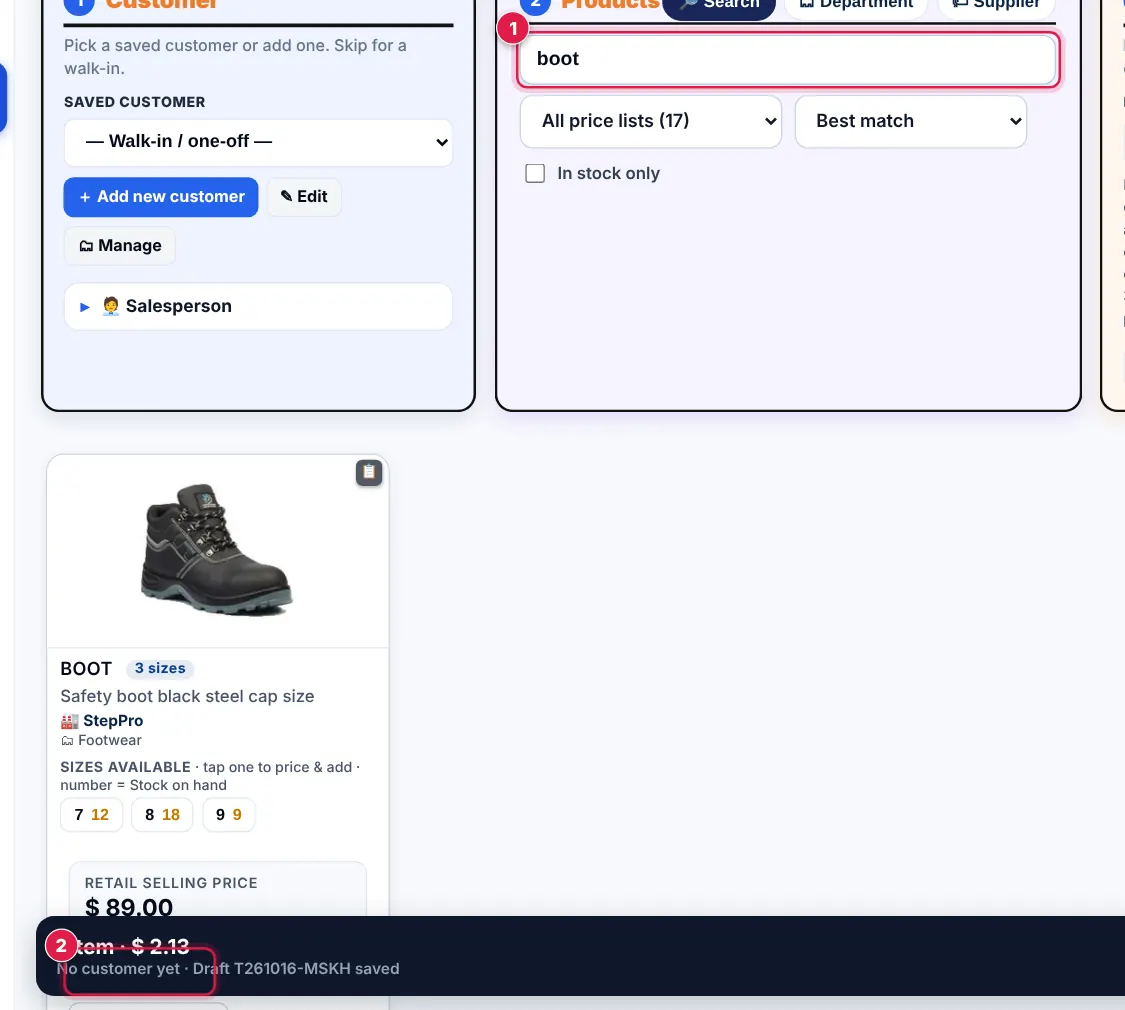
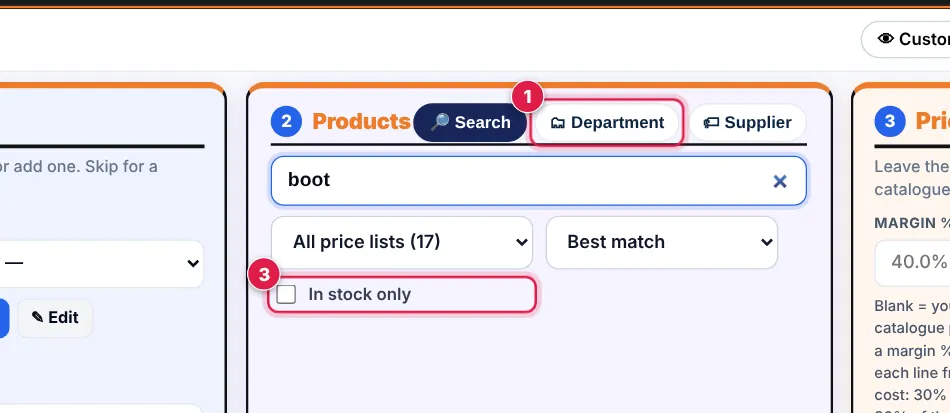
- 2
Browse instead of search: tap Department 1. Type in the supplier box 2 to see one supplier only, and tick In stock only 3 to hide items with no stock.
How do I add many products at once by pasting codes?
Got a list of codes from a customer’s email or order? Paste it.
- 1
Open ➕ More ways to add products (below 3 Price). In 📋 Paste product codes, put one product code (or barcode) per line 1. Add the quantity after the code:
HAT-W:20,HAT-W x 20,HAT-W @20orHAT-W 20.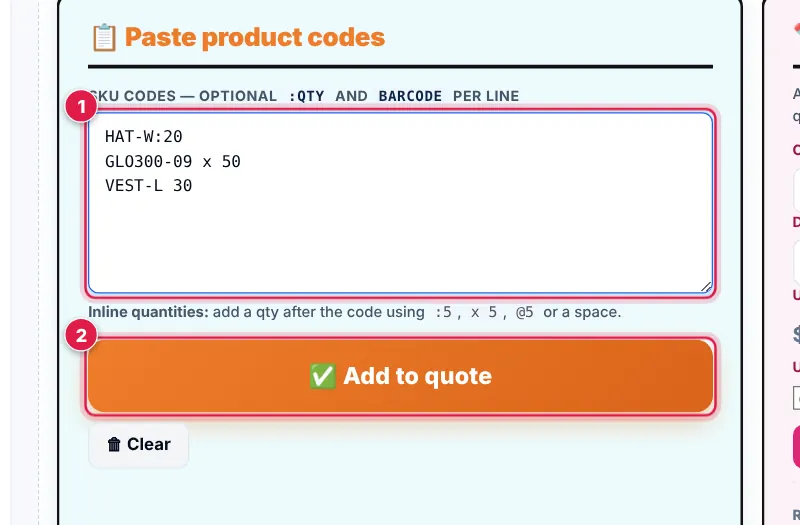
- 2
Tap ✅ Add to quote 2. Every code QUOTE21 finds is added; the quote shows how many were missing so you can check them.
How do I add my customer’s details?
Customer details print on the quote and are saved so you can reuse them next time.
- 1
Quick quote for a walk-in customer? Just type their name in Customer name in the Live view — that’s enough.
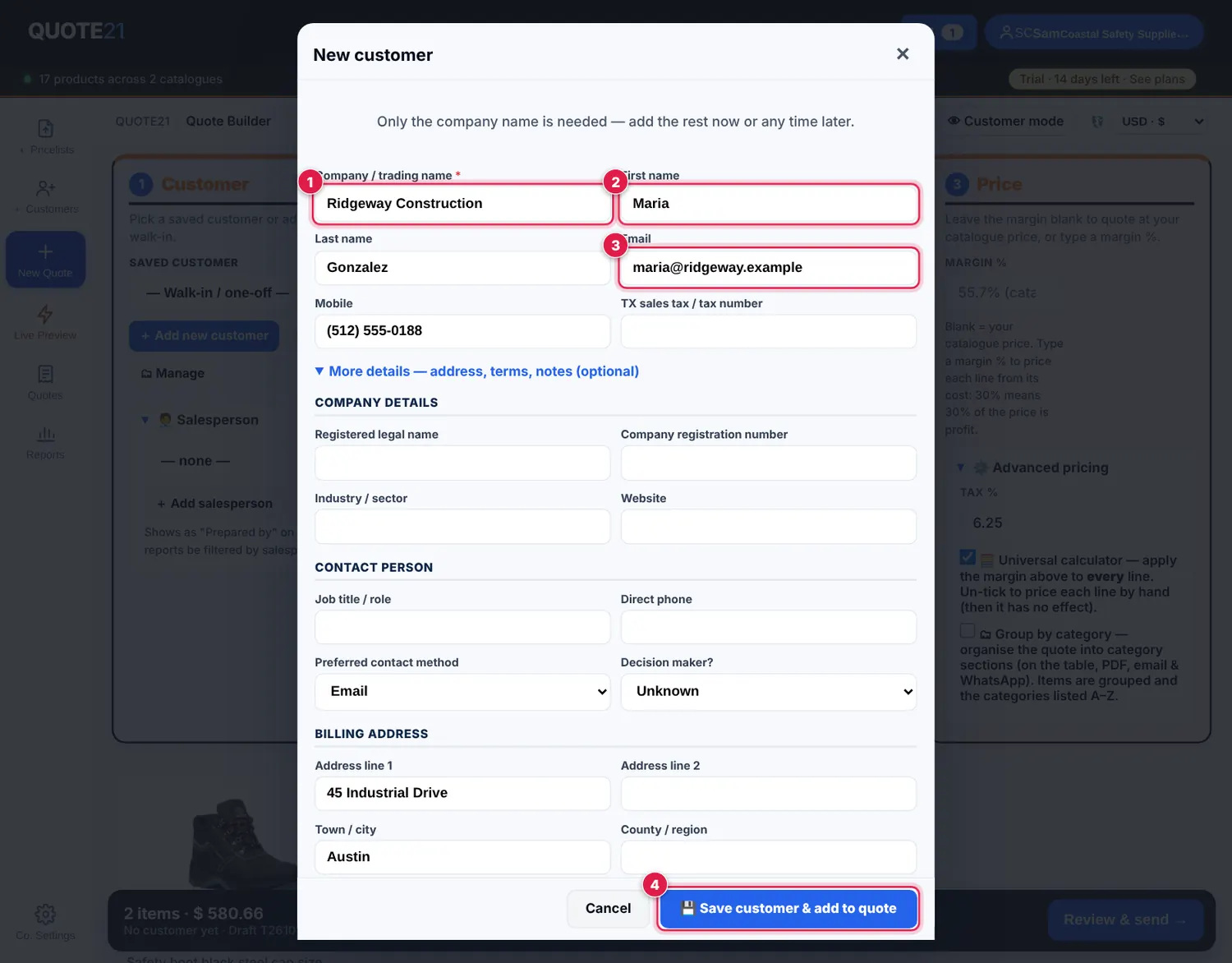
- 2
For a full customer record: in 1 Customer tap + Add new customer. Fill in the company 1, contact person 2 and email 3, plus the billing address. Fields with a red * are required. Tap 💾 Save customer & add to quote 4.
- 3
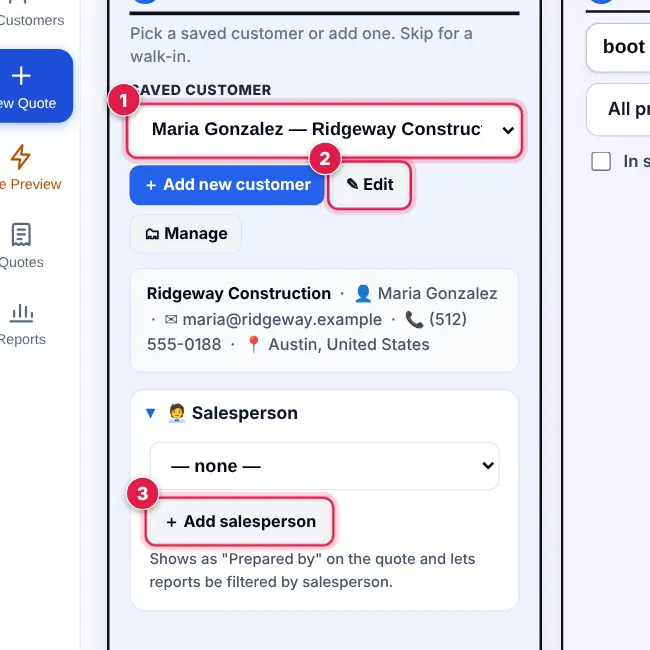
Next time, pick them from Saved customer 1. ✎ Edit 2 changes their details. Open 🧑💼 Salesperson and tap + Add salesperson 3 to add the rep’s name to the quote as “Prepared by” and filter reports by salesperson.
- 4
When a customer has quoted before, a blue box shows their history: last quote, how many quotes, the margin you usually give them, what they accepted and what they often buy.
How do I change quantities, prices, discounts and margin?
Everything is editable on the quote — your catalogue prices are never changed.
- 1
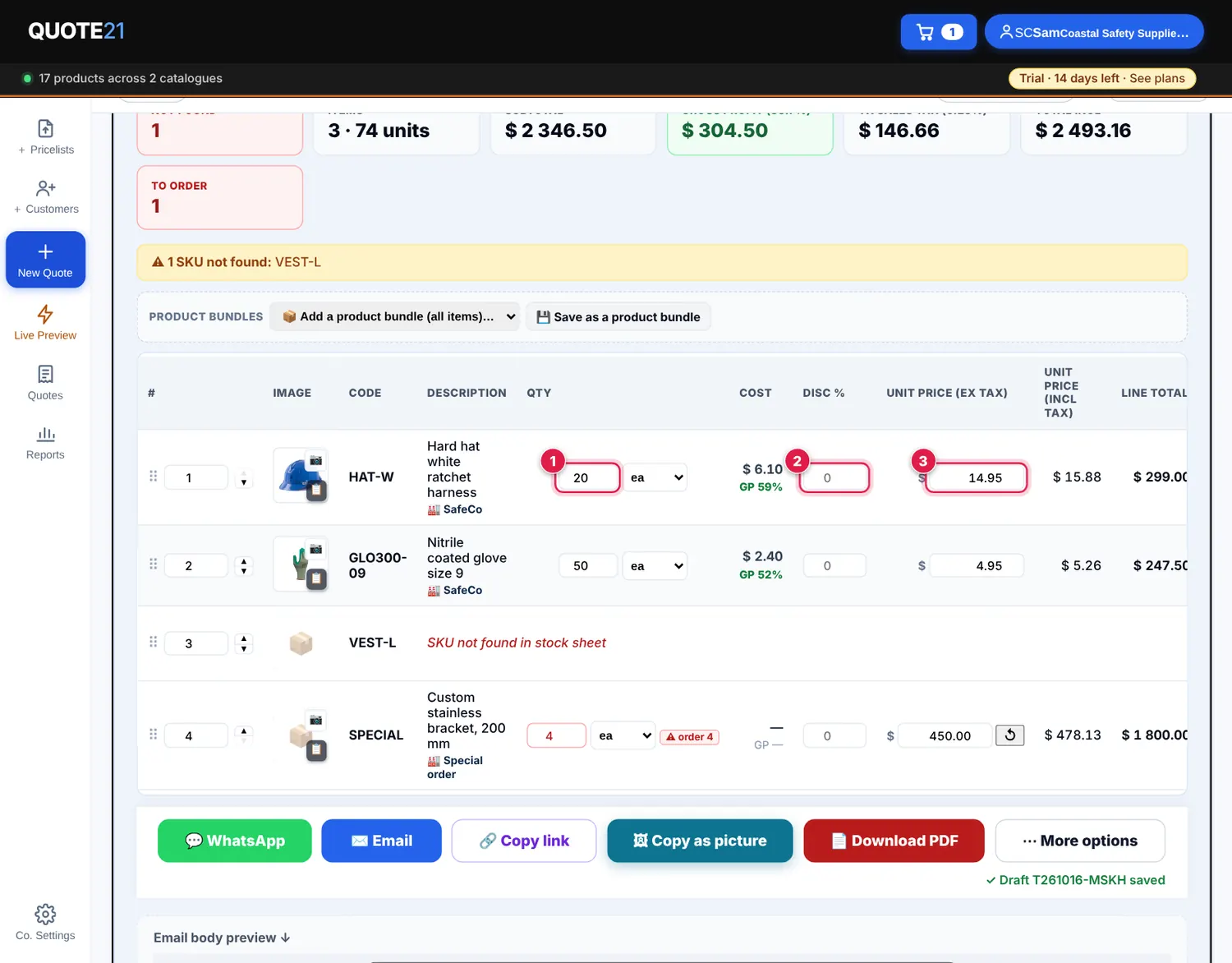
Open the quote (Review & send →, or 🛒 at the top). On each line change the quantity 1, give a discount % 2 or type your own unit price 3. The cost and your GP % show next to each line so you can see your profit.
- 2
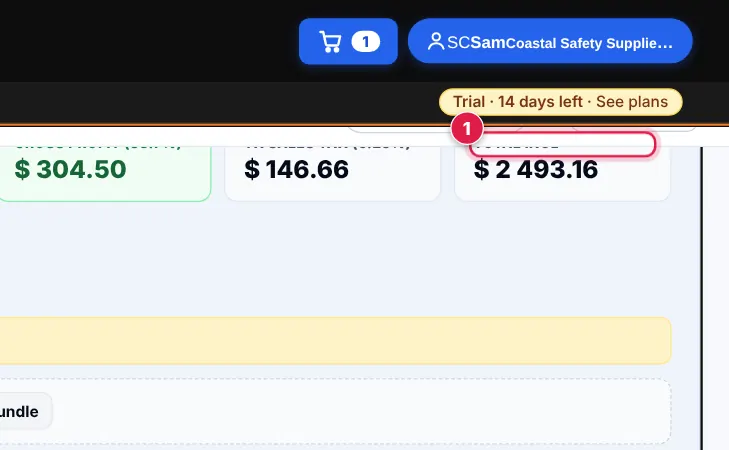
The totals at the top update as you go: subtotal, sales tax, Total incl 1 and your margin 2. To order shows lines where you are quoting more than you have in stock.
- 3
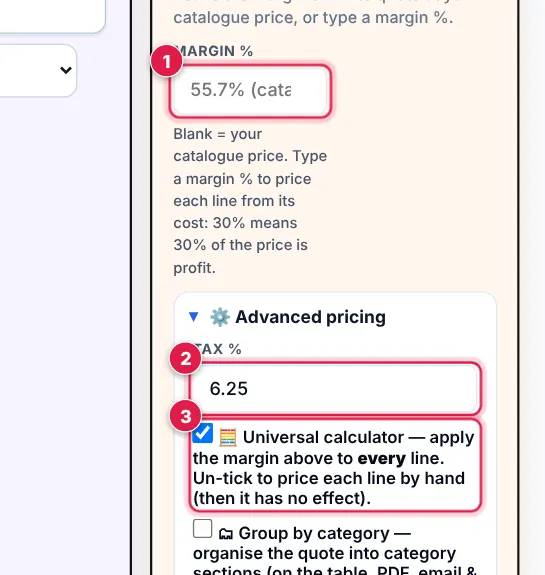
To add margin to the whole quote, use 3 Price: set Margin % 1 (0% = your catalogue price). Open ⚙️ Advanced pricing to change Tax % 2 or untick Universal calculator 3 to price every line by hand instead.
- 4
Tick optional on a line to show it on the quote without adding it to the total. Drag ⠿ to change the order. Tap × to remove a line.
💡 Customer looking over your shoulder? Tap 👁 Customer mode — see below.
How do I hide my costs and margins when a customer can see my screen?
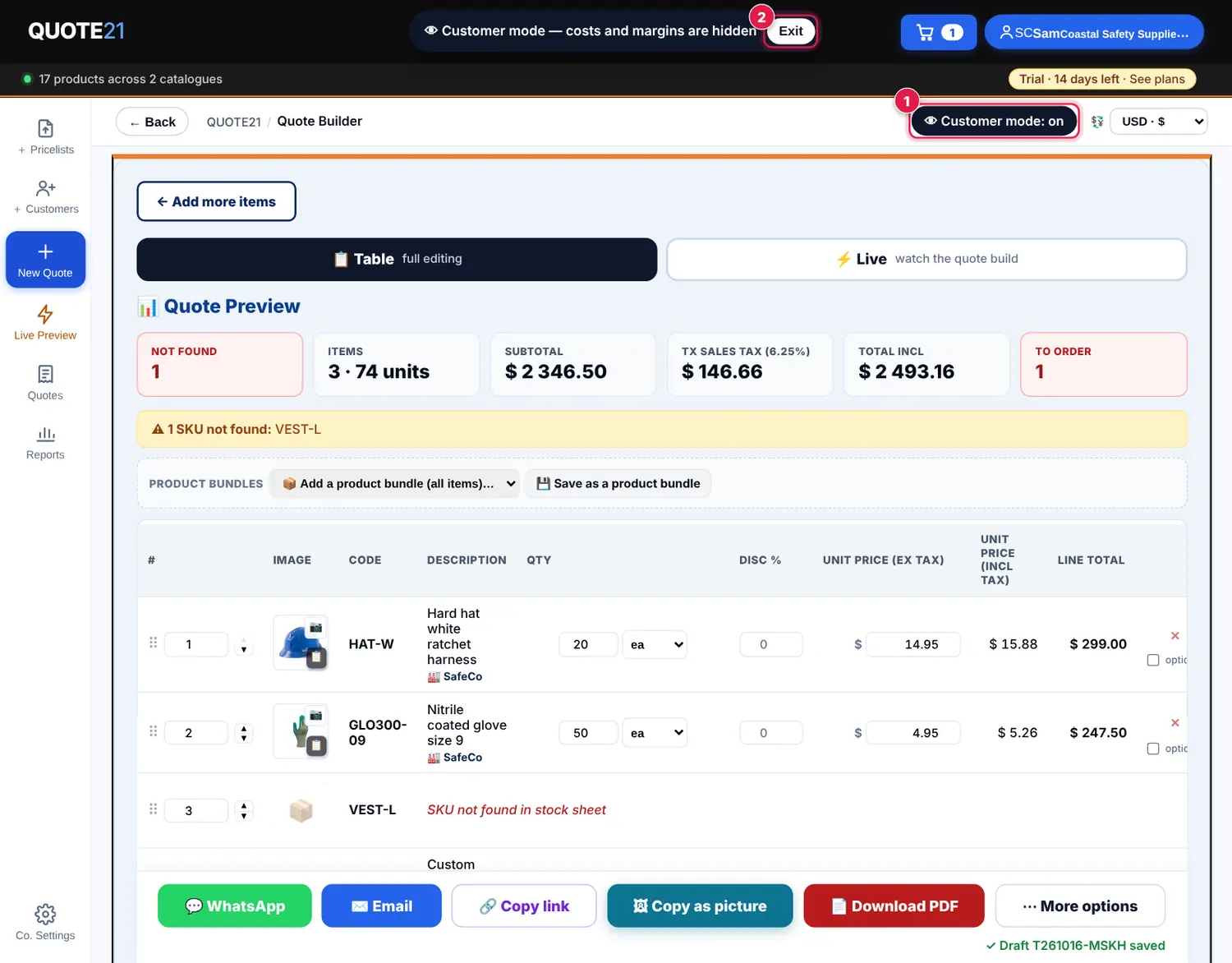
Customer mode hides every cost, GP and margin figure — perfect on a tablet sitting with a client.
- 1
Tap 👁 Customer mode 1 at the top of the quote builder. A dark banner shows it is on. Prices, quantities and totals stay; costs, GP and margins disappear.
- 2
Tap Exit 2 on the banner (or the button again) to bring them back.
How do I add an item that isn’t in my catalogue?
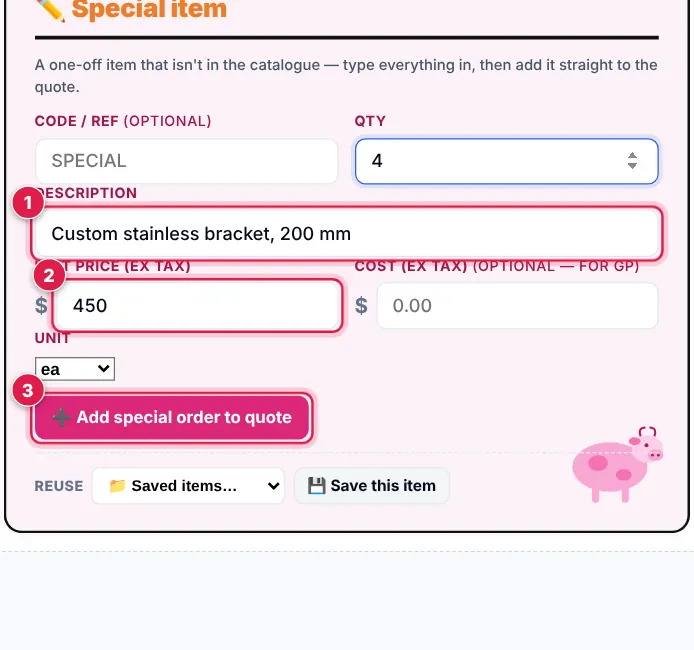
Use a special order for one-off items, labour, delivery or anything else not in a price list.
- 1
Open ➕ More ways to add products. In ✏️ Special item, type a description 1, the unit price before tax 2 and the quantity. A code and your cost are optional (add the cost to see your GP).
- 2
Tap ➕ Add special order to quote 3. Use 💾 Save this item to keep it for next time — it appears under 📁 Saved items….
How do I use the Live view?
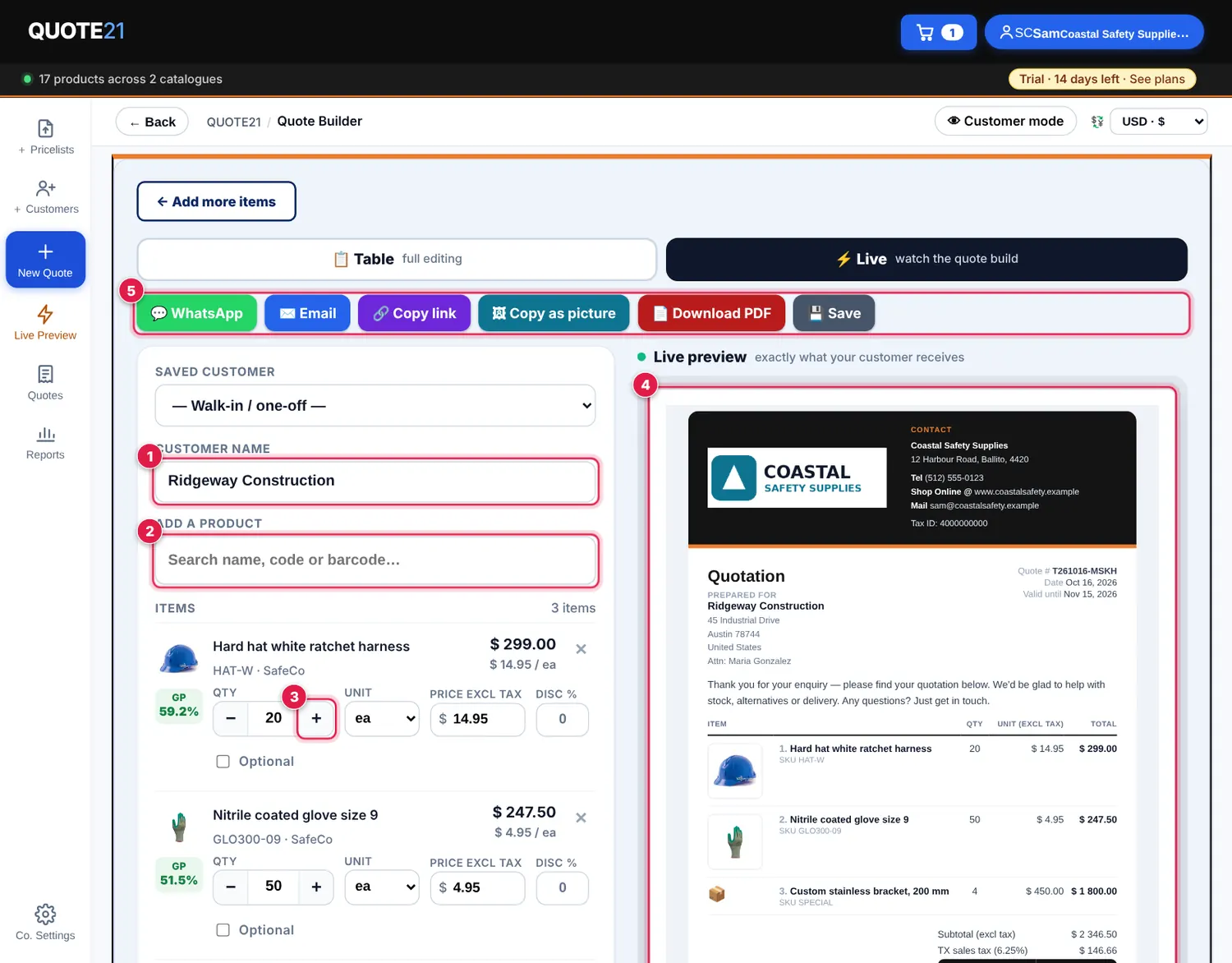
Live shows the quote exactly as your customer will receive it, and updates as you edit. Great on a tablet in front of the customer.
- 1
On the quote, tap the ⚡ Live tab. Type the customer name 1.
- 2
Search and add products in Add a product 2 — name, code or barcode. Change quantities with − and + 3, and edit price, unit, discount or optional on each line.
- 3
The live preview 4 on the right is what your customer gets. When you’re happy, send it with the buttons at the top 5 — Share link, WhatsApp, Email, Copy, PDF or Save.
How do I save and reuse a product bundle?
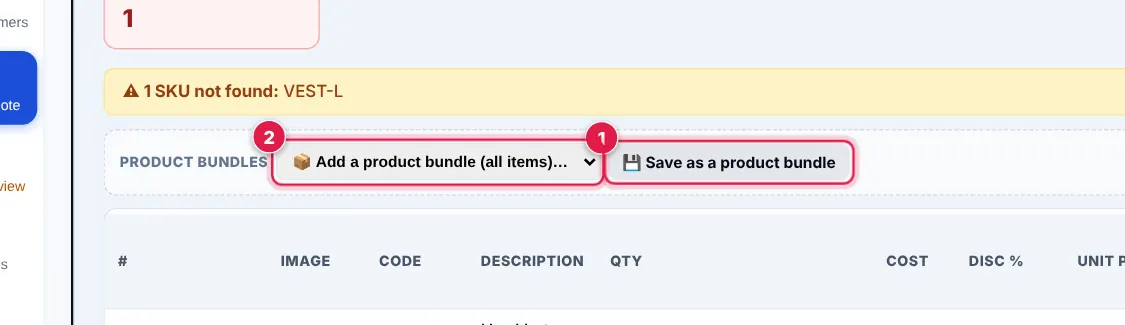
A product bundle is a saved group of products — like a “new starter PPE kit” — that you add to any quote in one tap.
- 1
Build a quote with the products (and quantities) you often quote together. Tap 💾 Save as a product bundle 1 and give it a name.
- 2
On any quote, choose the bundle from 📦 Add a product bundle (all items)… 2 — all its products are added in one go. Once you have a bundle, the same picker also appears next to the product search.
📤Sending & following up
How do I send a quote to my customer?
The best way is the interactive quote: your customer views it online, accepts it with their order number — and you see when they open it.
- 1
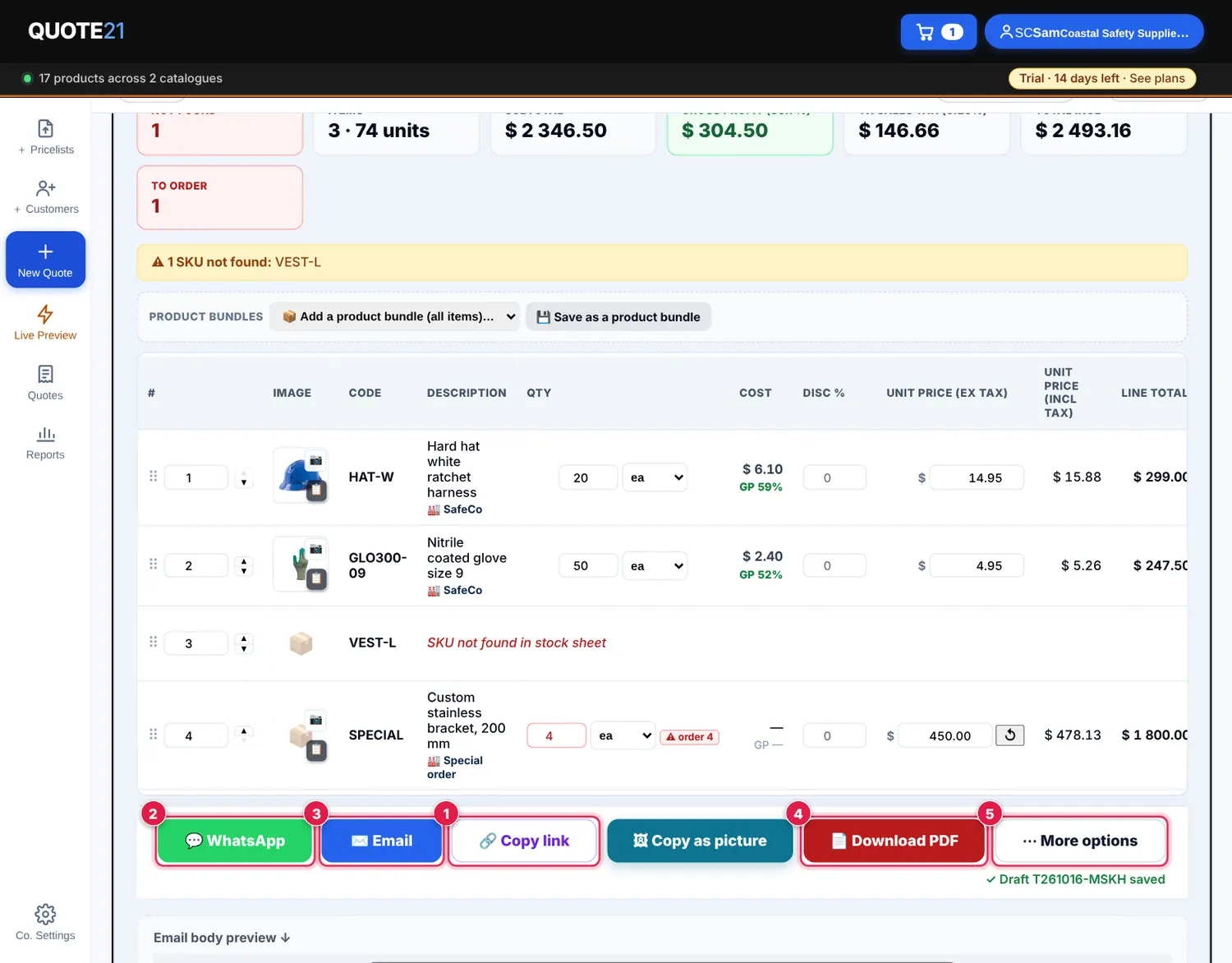
🔗 Send interactive quote 1 makes a web link to your quote. Send it any way you like — your customer opens it in their browser (no app needed), you see when they’ve viewed it, and they can accept online.
- 2
💬 WhatsApp 2 and ✉️ Email 3 send the quote with the online accept link included. 📄 Download PDF 4 makes a PDF with your logo to print or attach.
- 3
⋯ More options 5 has Copy quote, Save, Word, Excel, CSV and copy-as-email. (You don’t need Save — quotes save themselves.)
- 4
Your customer sees a branded quote with pictures and an Accept this quote button 1.
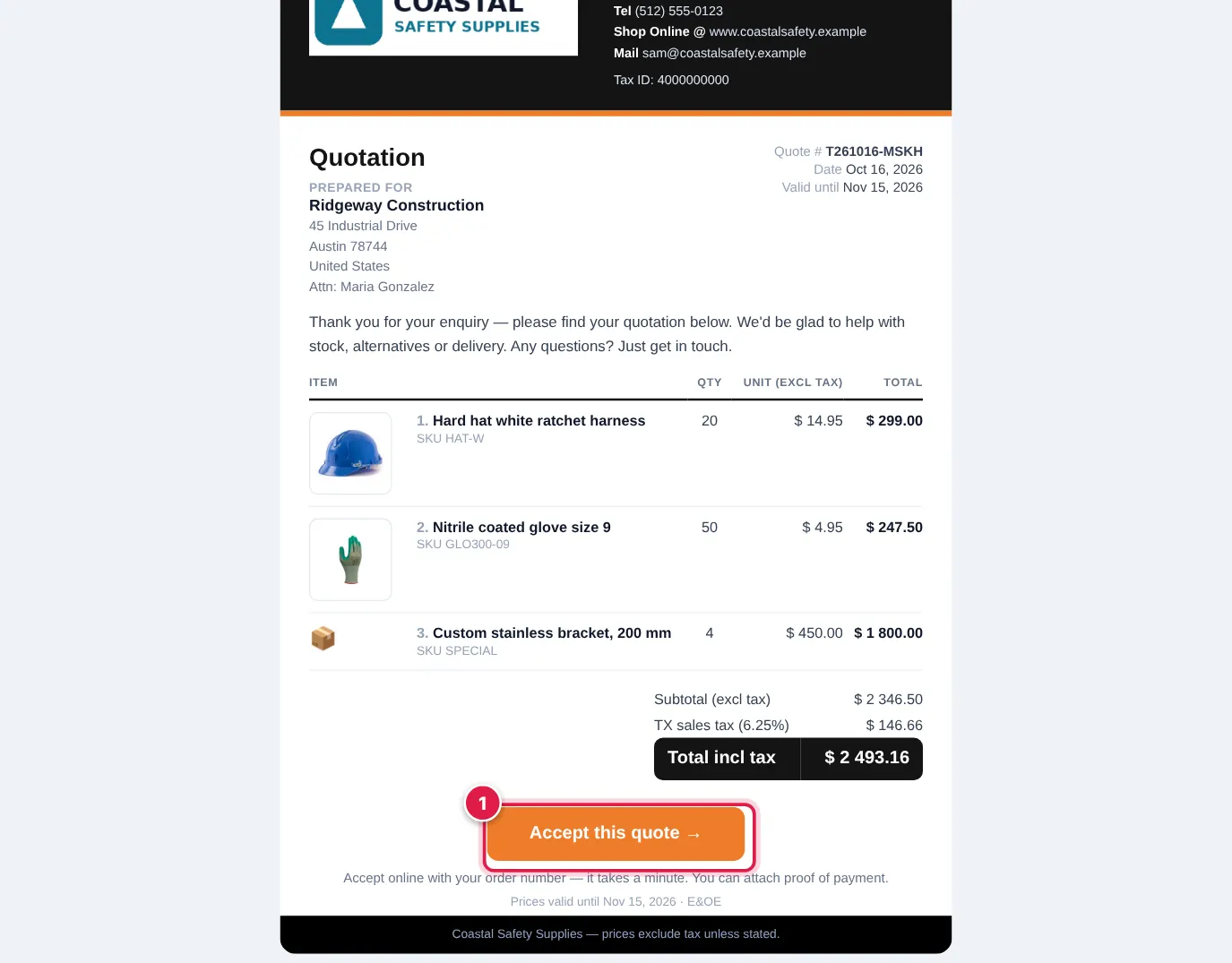
💡 Every quote gets its quote number and is kept under Quotes, so you can follow it up.
How does my customer accept a quote online?
Your customer accepts with their purchase order number — and can attach proof of payment. You get everything by email.
- 1
Your customer taps Accept this quote on the shared quote or in the email. They see the quote, your banking details and the payment reference.
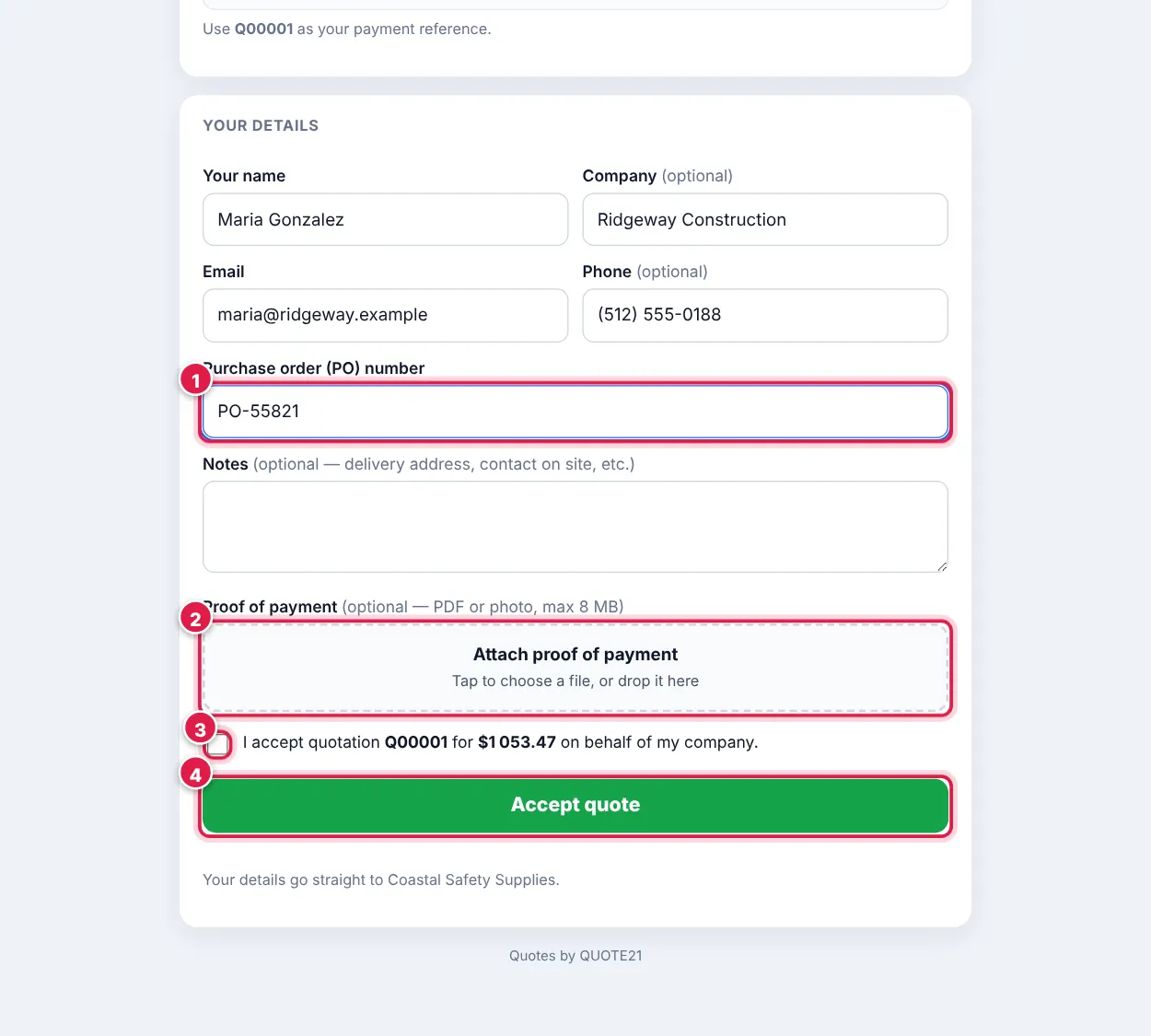
- 2
They fill in their details and PO number 1, can attach proof of payment 2 (PDF or photo), tick to confirm 3 and tap Accept quote 4.
- 3
You (and the rep who sent it) get an email from accepted@quote21.com with the customer’s details, the PO number, notes, the full quote and the proof of payment attached. The quote is marked Accepted on your Dashboard and under Quotes.
💡 Reply to that email and it goes straight to your customer.
How do I find an old quote, follow it up or mark it won or lost?
Every quote — drafts too — is under Quotes, with its status, customer and total. Reports has the full report with follow-up buttons and CSV export.
- 1
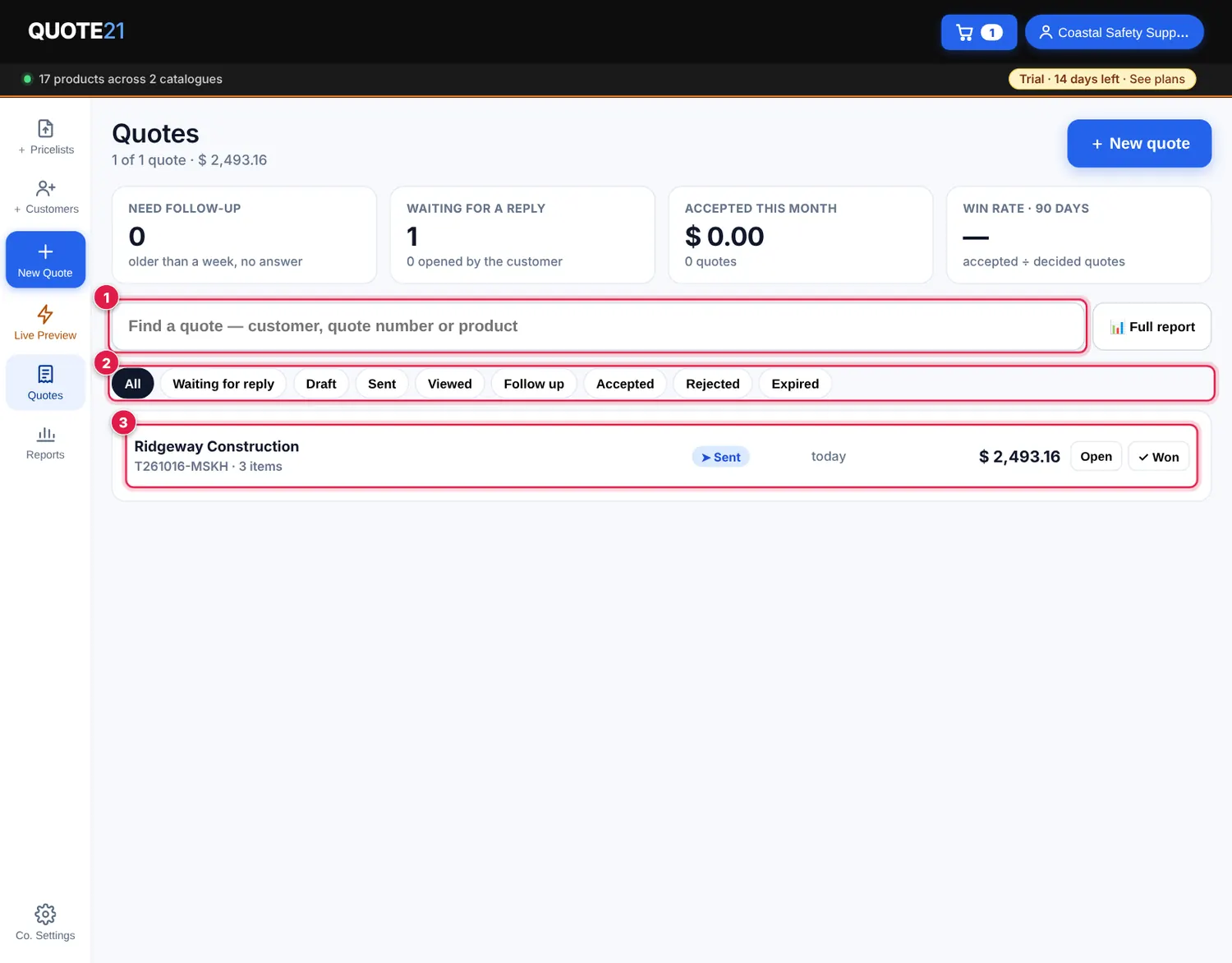
Tap Quotes in the menu. Search by customer, quote number or product 1, or tap a status 2 — Waiting for reply, Draft, Viewed, Follow up, Accepted, Rejected, Expired. Tap a quote 3 to open it.
- 2
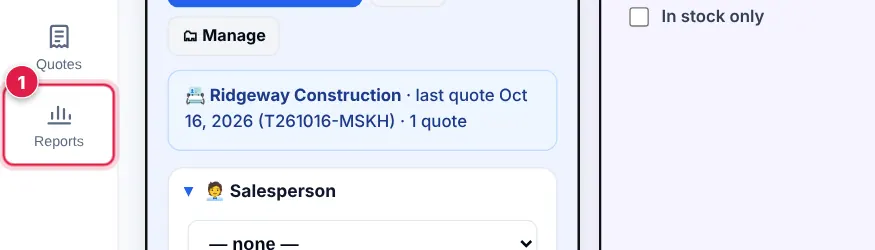
For the full report, tap Reports 1.
- 3
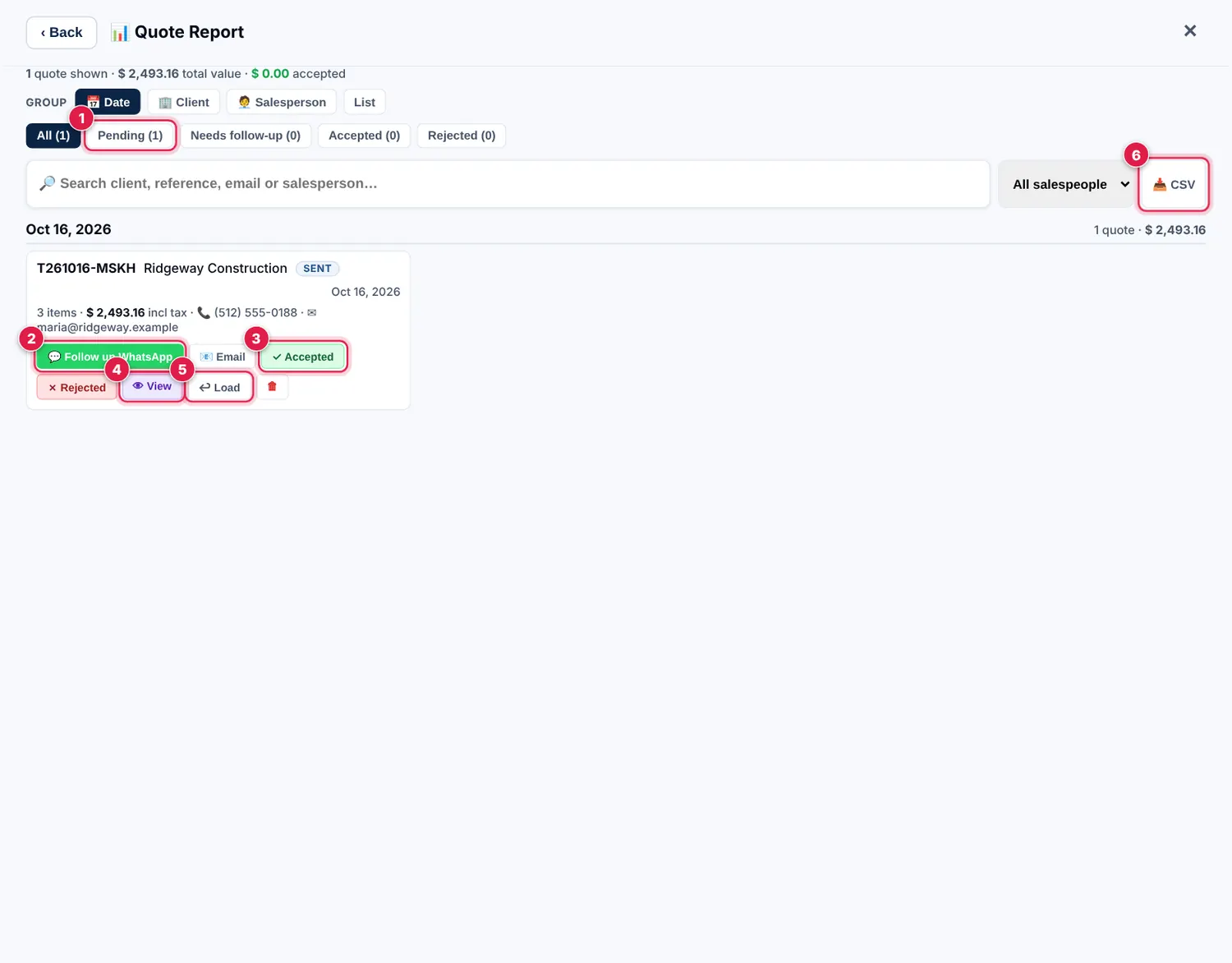
Filter by Pending 1, Needs follow-up, Accepted or Rejected, or search by client, reference, email or salesperson. Group by date, client or salesperson.
- 4
On a quote: 💬 Follow up WhatsApp 2 or Email to chase it, ✓ Accepted 3 or ✗ Rejected to record the result, 👁 View 4 to see it, and ↩ Load 5 to open it in the quote builder to change and resend.
- 5
📥 CSV 6 downloads the report for Excel.
⚙️Team, plan & settings
How do I invite my sales team?
Everyone on your team quotes from the same catalogues, and their quotes appear in your report.
- 1
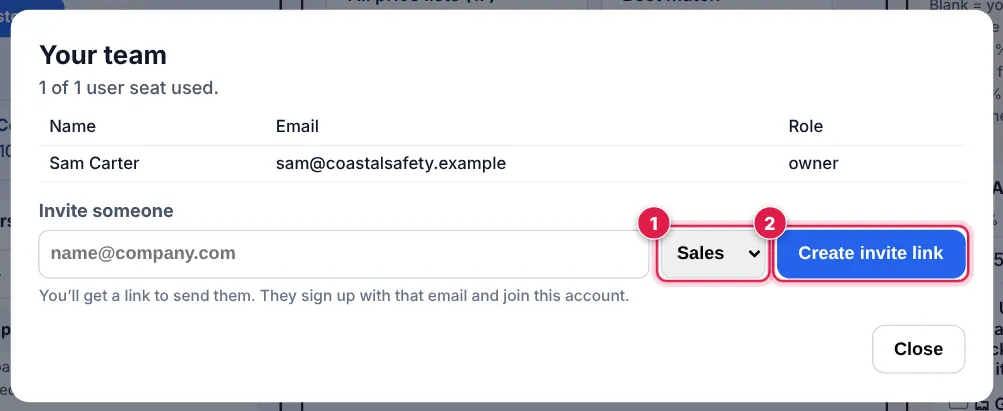
Account menu → 👥 Team. Type their email, choose Sales or Admin 1 and tap Create invite link 2.
- 2
Send them the link (WhatsApp or email). They sign up with that email and join your account.
💡 Sales users can quote. Owners and admins can also manage catalogues, company details and the team.
💡 The number of users depends on your plan (up to 5 on the trial).
How do I choose a plan and pay?
Your trial has everything unlocked. Choose a plan any time — it starts the day you pay.
- 1
Account menu → 💳 Plan & billing (or tap the Trial · days left badge at the top).
- 2
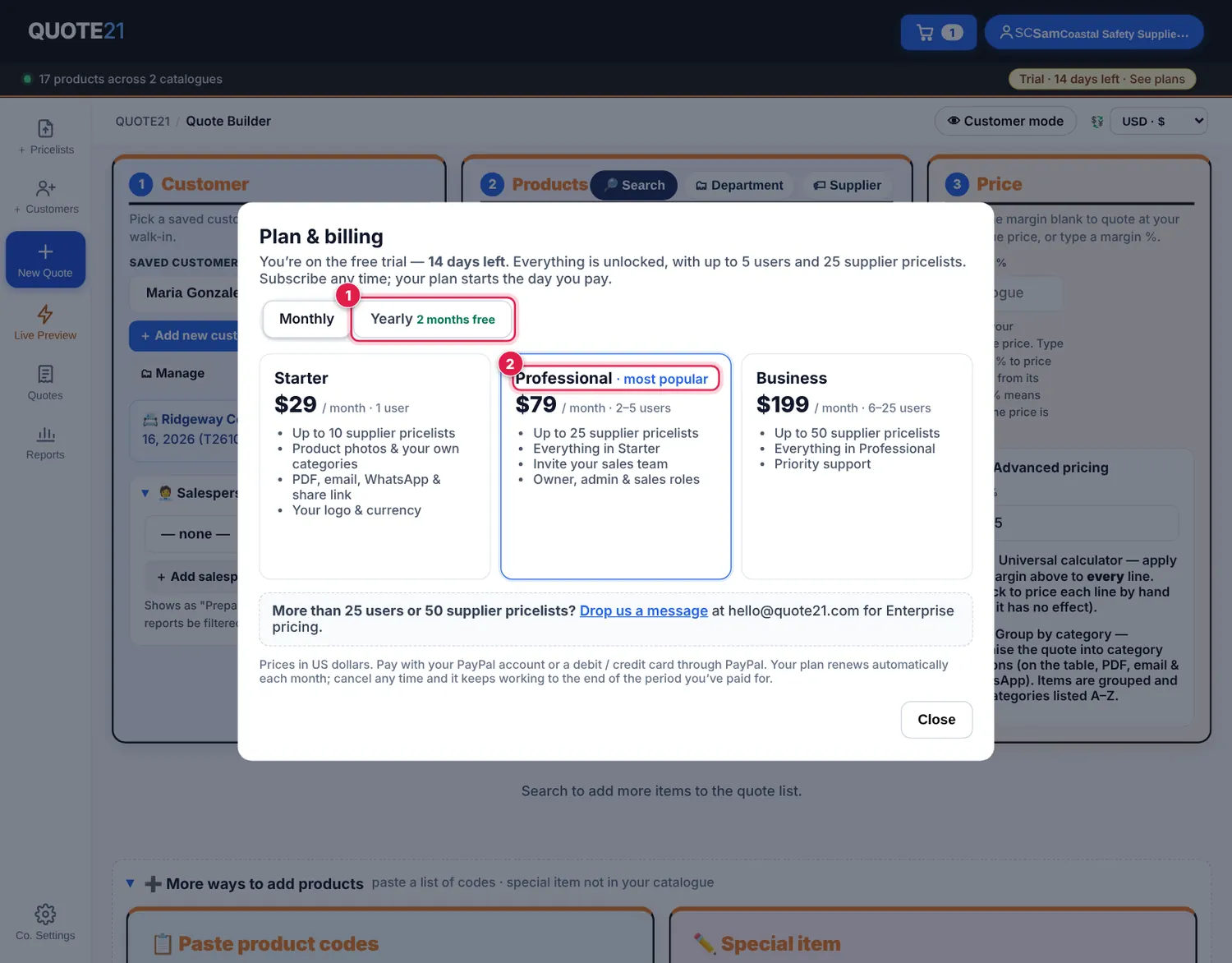
Choose Monthly or Yearly 1 (yearly = 2 months free), then pick a plan 2 — Starter, Professional or Business.
- 3
Pay with PayPal or a debit / credit card through PayPal. Cancel any time from the same window — it keeps working until the end of the period you’ve paid for.
💡 More than 25 users or 50 price lists? Email hello@quote21.com for Enterprise pricing.
How do I set my sales tax (US) or VAT?
QUOTE21 adds the right tax to every quote. In the US it uses your state’s sales tax; elsewhere your country’s VAT or GST.
- 1
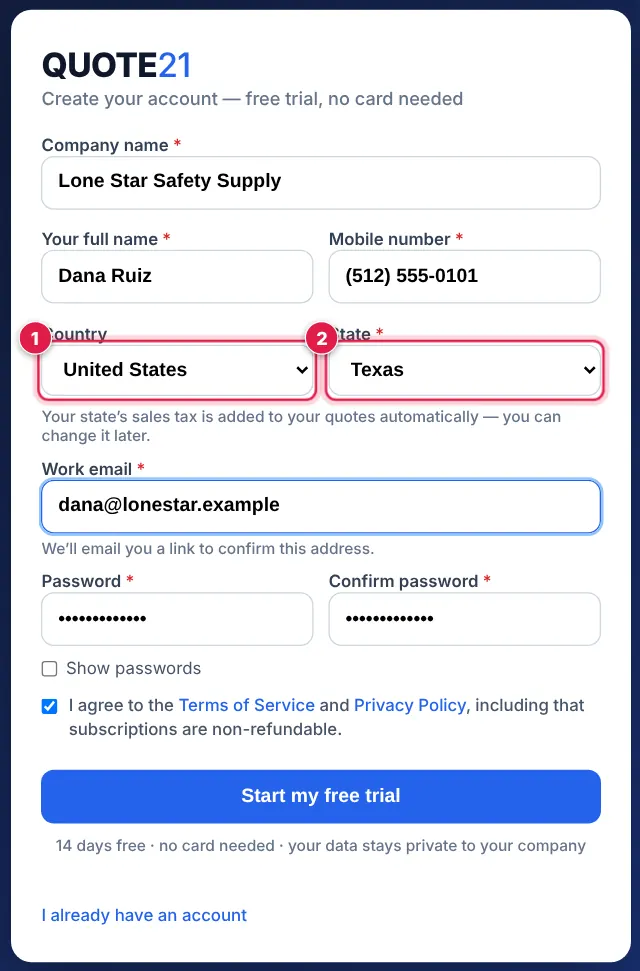
When you sign up, choose your country 1. In the United States, also choose your state 2 — QUOTE21 sets your state’s sales tax rate, calls it e.g. “TX sales tax” and switches your quotes to US dollars.
- 2
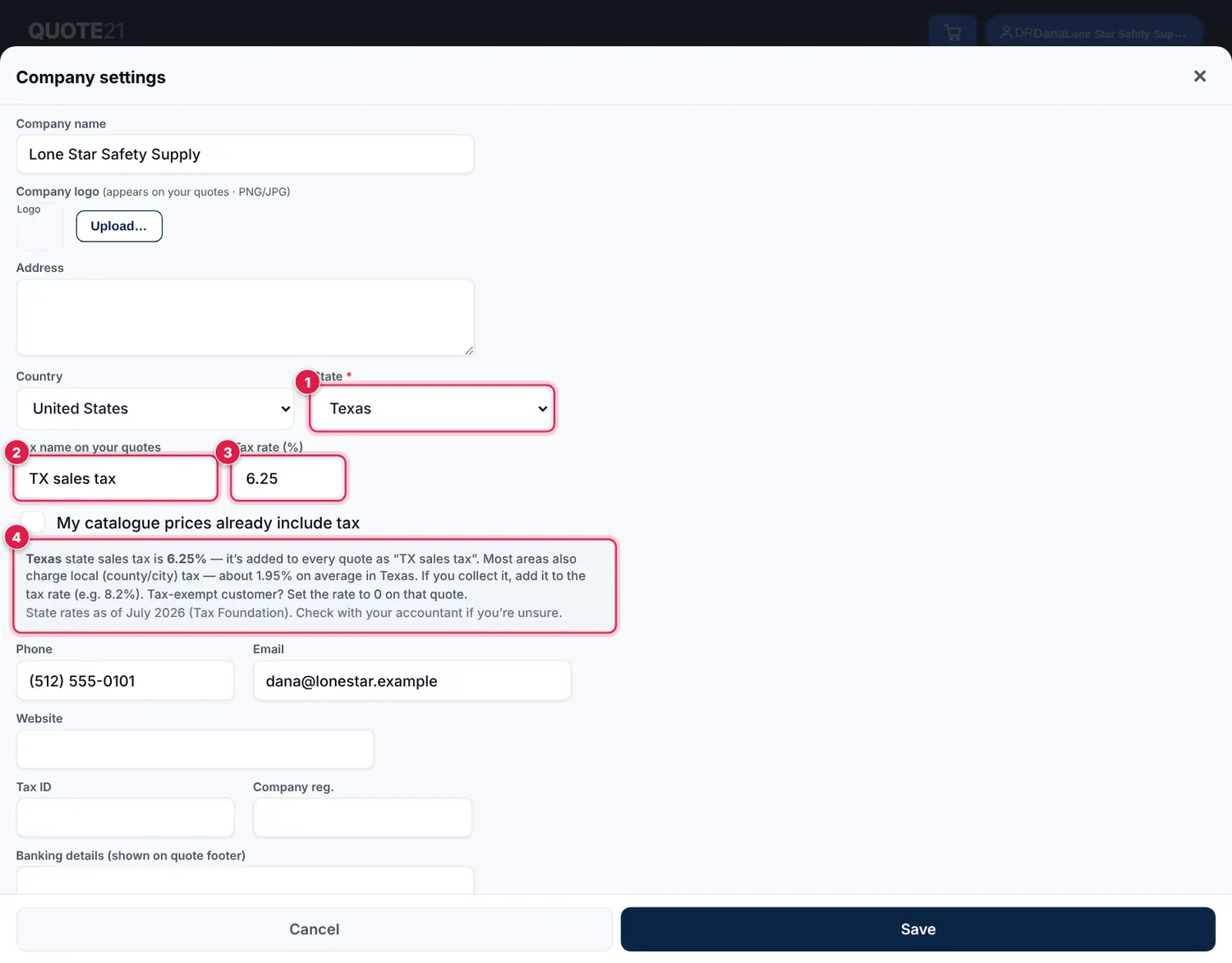
To change it later: account menu → 🏢 Company details & logo. Pick your state 1 and QUOTE21 fills in the tax name 2 and rate 3. The note 4 shows the average local (county/city) tax in your state — if you collect it too, add it to the rate (e.g. Texas 6.25% + local 2% = 8.25%). Tap Save.
- 3
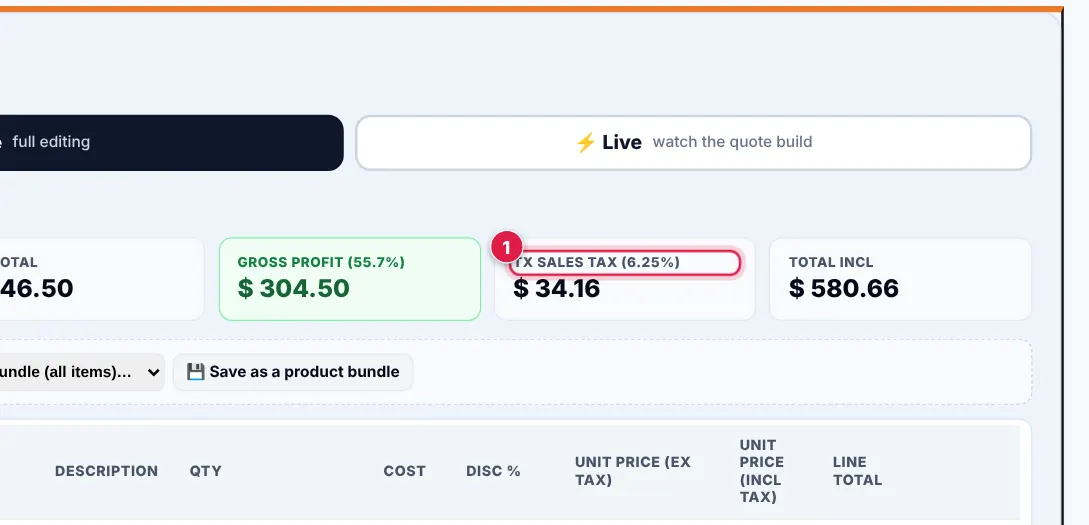
Every quote, PDF, email, WhatsApp message, share link and accept page then shows your tax by name, added on top of your prices.
- 4
Tax-exempt customer (e.g. a reseller with a certificate)? Set Tax % to 0 under 3 Price → ⚙️ Advanced pricing for that quote.
💡 In the US your catalogue prices are treated as before tax. In South Africa prices include VAT, as before. Change this with My catalogue prices already include tax in Company details.
💡 State rates are the July 2026 state rates (Tax Foundation). Check with your accountant if you’re unsure which rate to charge.
Where do I find settings like barcode scanning and help?
Everything for your account is in the account menu — tap your company name at the top right.
- 1
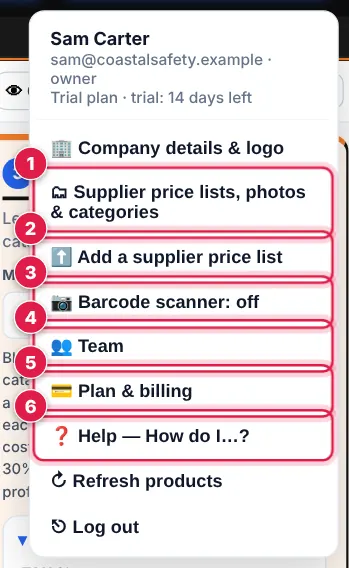
🗂 Supplier price lists, photos & categories 1 and ⬆️ Add a supplier price list 2 manage your price lists. 📷 Barcode scanner 3 switches a Scan barcode button on beside the search box for your whole team. 👥 Team 4, 💳 Plan & billing 5 and ❓ Help 6 are here too.
- 2
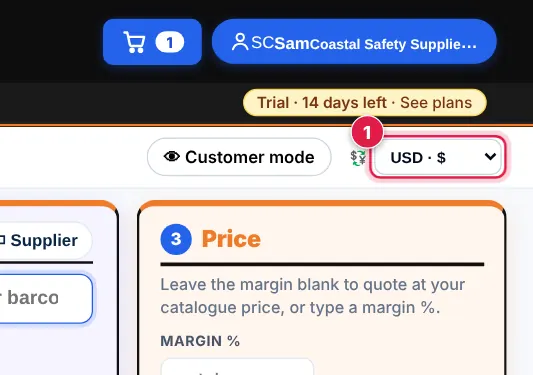
To quote in another currency, choose it from the currency box at the top right 1.